

Firmware Update
To update the firmware, the BIN update file should be manually sent to the device.
This can be done with Control Panel OB-215/OB-216, version 1.0.8 or higher.
Before you start
Section titled “Before you start”Checking current version
Section titled “Checking current version”Before updating, check your current firmware version to see if an update is necessary. You can find the version number:
- At the bottom of the Control Panel application window, after it connects to OB-216.
- By reading Modbus
Firmware versionregister (Additional Registers, address 1).
Getting the update file into OB-216
Section titled “Getting the update file into OB-216”To write the update files into the OB-216 memory:
-
Connect OB-216 via RS-485 interface
- OB-216 should be connected using external USB/RS-485 interface converter or Modbus RTU/Modbus TCP converter.
- If Modbus TCP converter is used, its RS-485 response timeout should be set high (5000 ms) to allow for long memory erase delays in the firmware update process.
-
Connect Control Panel OB-215/OB-216 to the device
- If USB/RS-485 converter is connected, use
Program settingsbutton to select serial port and set baud rate9600, parity and stop bitsNone, 2, protocolRTU. - If Modbus TCP converter is connected, use
Program settingsbutton to selectModbus TCPport and address. - Use
Connect to devicebutton to connect to the OB-216. - Check current device firmware version in the bottom of the application window.
- If USB/RS-485 converter is connected, use
-
Start firmware upgrade
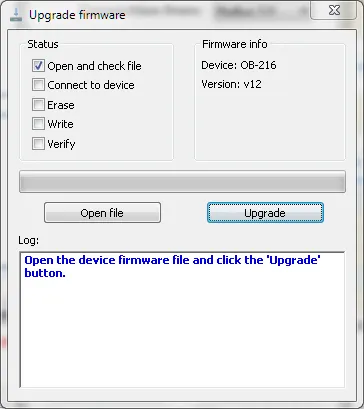
- Disconnect from device (if connected).
- Use
Program settingsbutton, thenFirmware upgradebutton in theSettingswindow. - Use
Open file buttonand select theBINfile on your drive. - Check the file version in the top right corner of the window.
- Use
Upgradebutton to start the firmware update process.
-
Wait till the update process finishes
- The process may take up to 20-30 minutes.
- The process will be shown in the application window, with progress bar and updating log messages.
-
Confirm the version number
- Connect to OB-216 again if needed.
- Check the version number in the Control Panel application window.
Troubleshooting & FAQ
Section titled “Troubleshooting & FAQ”Q: Will I lose my configuration or data during an update?
A: No, the firmware update to a newer version process is designed to preserve your device configuration, and Modbus settings. However, downgrading the firmware may revert the settings to factory defaults. In either case, backing up critical data is always recommended.
Q: The Firmware Upgrade button is not appearing in the application window.
A: Disconnect the application from the device, then use Program Settings button. Check the application version is 1.0.8 or newer.
Q: The Control Panel application does not recognize the file, and no file version is displayed.
A: Check the following:
- The file is the correct OB-216 update file downloaded from the Firmware Downloads.
- The file has
BINextension (in the file properties). - The file is not archived (unpack if it is).
Q: The update process seems to hang.
A: The update process typically takes 20-30 minutes. If it takes significantly longer:
- Do not power off the device immediately.
- Check the log in the application window for any error messages.
- If the device is unresponsive (or the update process is stalled while the device LEDs blink intermittently), try to repeat the update process.
Q: Can I downgrade the firmware?
A: Yes, you can install an older firmware version by sending the older firmware file to the device. However, the device settings are not always retained and may be reverted to factory defaults after firmware downgrade.
Need Help?
Section titled “Need Help?”For technical support and assistance:
- Email: support@overvis.com
- Support portal: www.overvis.com/support