

Billing
Overvis Cloud uses a prepaid balance model. Your organization has an account balance in EUR, and the system deducts the cost of services from it automatically each day. When the balance runs low, you receive email warnings. When it is exhausted, all your networks are disabled until the balance is replenished.
There are no subscription tiers or monthly plans — you pay only for the services you use. The billing pages are available to organization managers (owners and managers); viewers do not have access.
How Pricing Works
Section titled “How Pricing Works”Overvis charges for the following services:
- Network processing — a fixed daily rate per network (gateway connection). The default rate is €0.50/day (€15/month) per network. Promotional or referral discount codes can lower the per-network rate (see Discount Codes). Volume discounts are available for deployments with 10 or more gateways — contact sales for details.
- Data storage — each network includes a base amount of data storage at no extra cost. Additional storage is billed at €0.20/month per 1,000,000 data points. For reference, logging 100 parameters every 60 seconds generates approximately 150,000 data points per month, so most users stay within the included storage.
- SMS notifications — charged per message at the time of sending, based on the destination phone number. Typical rates: €0.03–0.05/SMS within the EU, varying by destination country. SMS costs are deducted from the balance immediately when the notification is sent. Email notifications are free and unlimited.
The daily network processing charge is deducted once per day for the previous day’s service. If a network was enabled for any part of the previous calendar day, a charge is applied.
All prices are net (VAT excluded). See the Overvis pricing page for full pricing details.
Account Balance
Section titled “Account Balance”Each organization has two balances:
- Account balance (EUR) — the main spendable balance, funded by card payments, bank transfers, or cash.
- Bonus balance (EUR) — promotional credit (e.g. the registration bonus). Bonus balance is used first when charges are applied. Bonus balance is non-refundable.
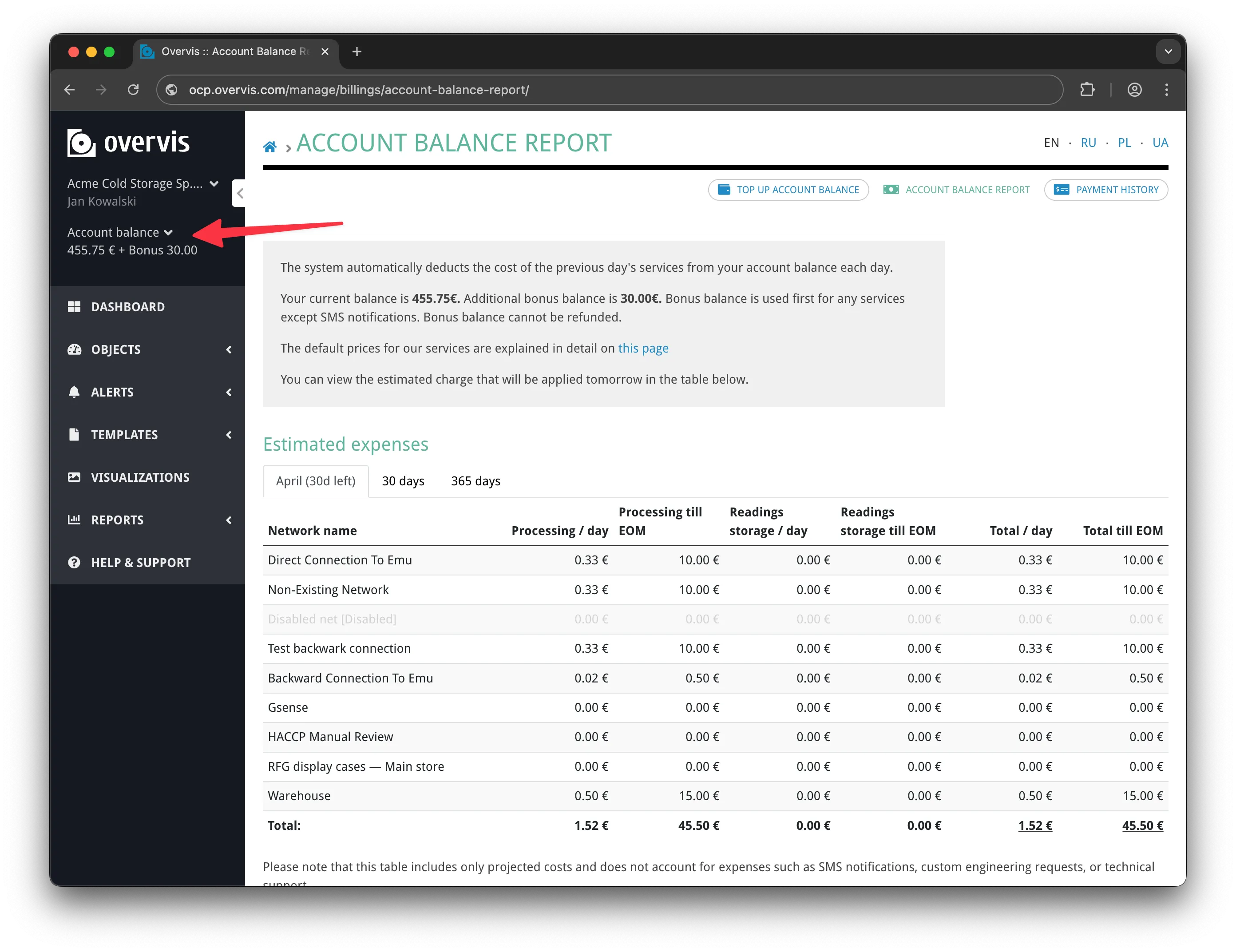
Both balances are visible in the sidebar of every page. Click the Account balance area in the sidebar to open a dropdown menu with quick links to:
- Top Up Balance — add funds to your account
- Account Balance Report — view charges and estimated expenses
- Payment History — see past payments and download receipts
Topping Up Your Balance
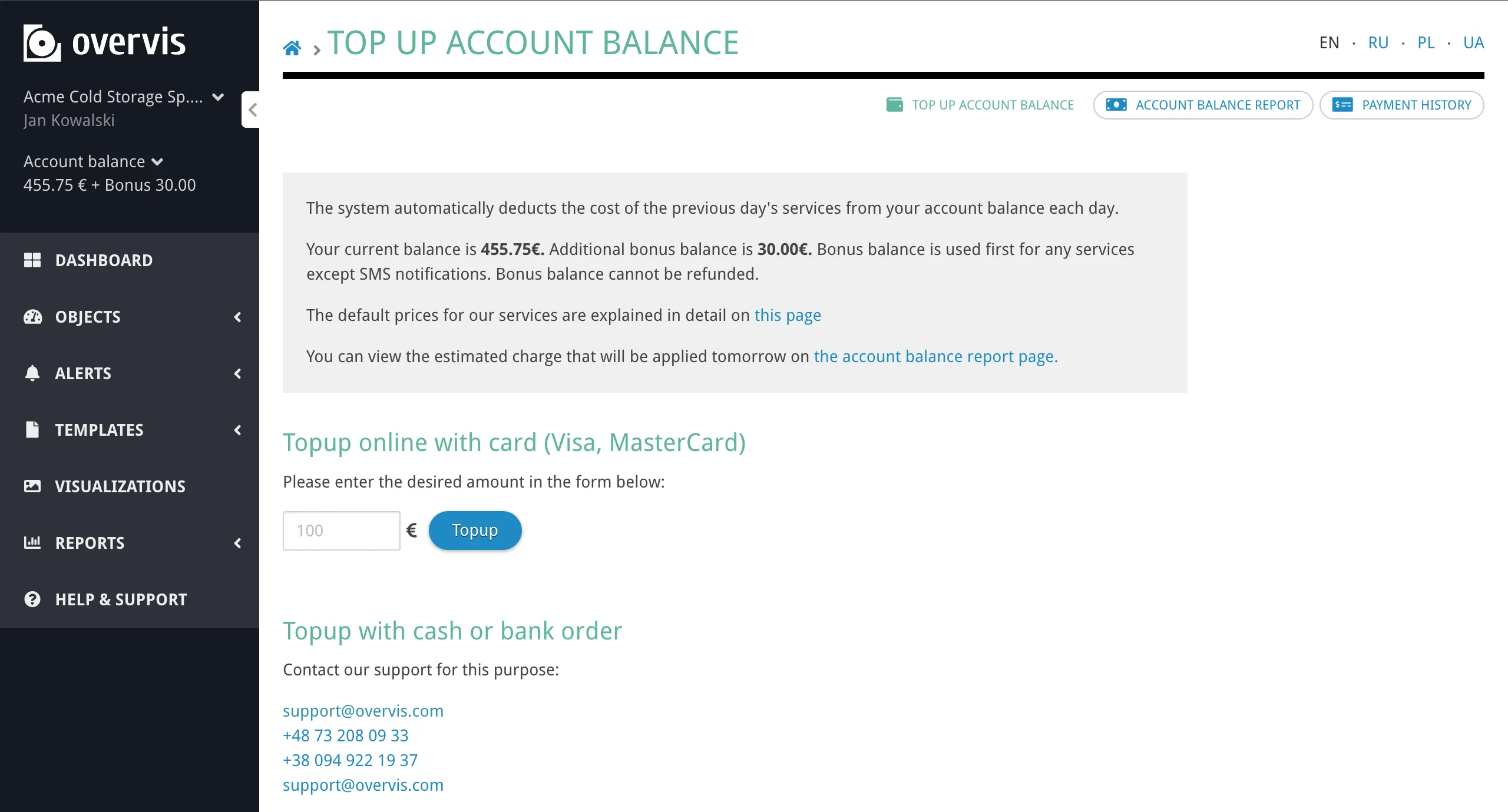
Section titled “Topping Up Your Balance”Navigate to Top Up Balance from the sidebar balance menu.
The top-up page shows your current account and bonus balances, a link to the pricing page, and a link to the account balance report.
Online card payment (Visa/MasterCard)
Section titled “Online card payment (Visa/MasterCard)”Enter the desired amount in EUR (minimum €1) and click Topup. You will be redirected to a secure payment page powered by Stripe. After a successful payment:
- The amount is credited to your account balance immediately.
- A PDF receipt is generated and emailed to the billing email address configured in organization settings.
- The receipt appears in your Payment History.
The maximum top-up amount depends on your current account balance — the system caps the total account balance at a configured limit (e.g. €1,000). If your current balance is already near this limit, the available top-up amount will be reduced accordingly, and the card top-up form may be temporarily unavailable.
Cash or bank transfer
Section titled “Cash or bank transfer”For payments by bank transfer or cash, contact your assigned personal manager (shown on the page if assigned) or Overvis support. The support contact details are displayed on the top-up page.
Account Balance Report
Section titled “Account Balance Report”The Account Balance Report page (accessible from the sidebar balance menu) is the central place for understanding your expenses. It has two main sections: estimated expenses and expenses history.
Estimated expenses
Section titled “Estimated expenses”This section shows a projection of your upcoming charges based on currently enabled networks. It is displayed as a table with three tabs:
- First tab — projected cost from today through the end of the current calendar month. The tab label shows the month name and how many days are left in the month (column headers include till EOM for the end-of-month projection).
- 30 days — projected cost for the next 30 days
- 365 days — projected cost for the next 365 days
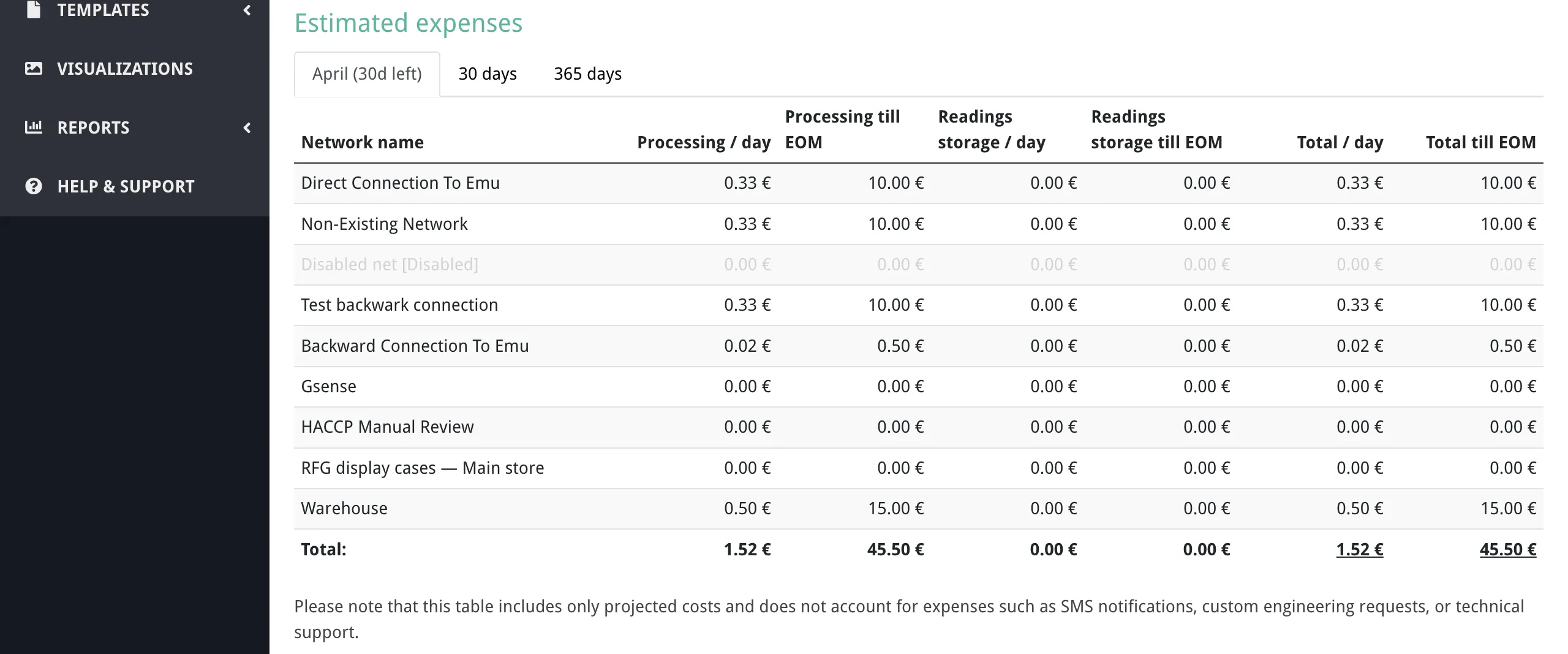
For each network, the table shows:
| Column | Description |
|---|---|
| Network name | Name of the network (disabled networks are shown in grey) |
| Processing / day | Daily processing cost for this network (EUR) |
| Processing / period | Total processing cost for the selected period |
| Readings storage / day | Daily storage cost |
| Readings storage / period | Total storage cost for the period |
| Total / day | Combined daily cost |
| Total / period | Combined cost for the selected period |
A totals row at the bottom sums all networks.
Expenses history
Section titled “Expenses history”Below the estimates, a monthly expenses history table shows all actual charges and credits for a selected month. Use the Month dropdown to switch between months (data is available from the month your organization’s first charge occurred).
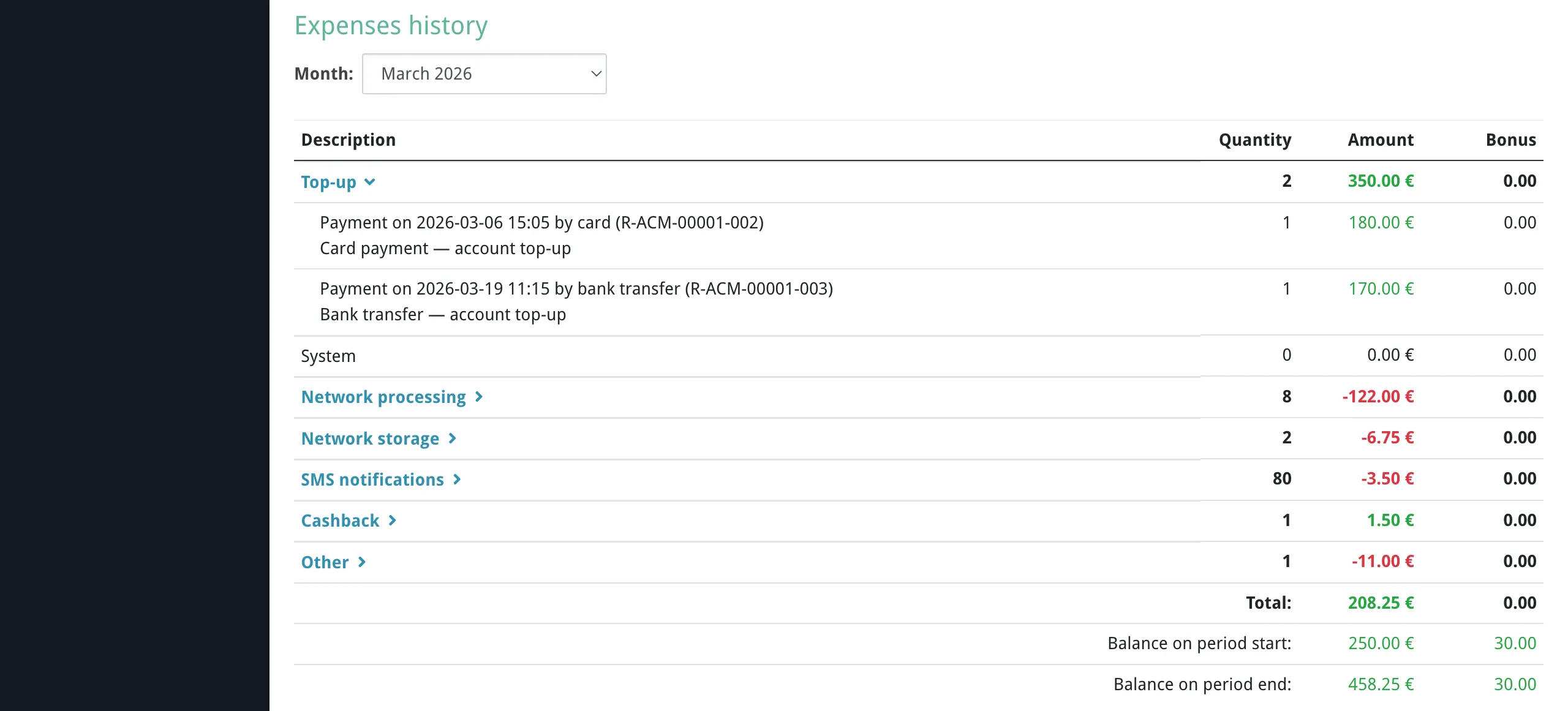
Rows are grouped by category. Click on a category row to expand it and see individual records:
- Top-up — payments received (card, bank transfer, cash), with payment method, receipt document number, and date. Also includes bonus balance credits.
- System — system-generated credits (e.g. the registration bonus).
- Network processing — daily charges per network. Expandable to individual daily records showing the bill date and discount code (if any).
- Network storage — data storage charges per network.
- SMS notifications — charges grouped by phone number, expandable to individual messages with timestamps and quantities.
- Cashback — referral cashback credits, if applicable (see Discount Codes).
- Other — miscellaneous adjustments.
Each row shows four columns:
| Column | Description |
|---|---|
| Description | What the charge or credit is for |
| Quantity | Number of individual records in this group |
| Amount | EUR amount (green for credits, red for charges) |
| Bonus | Bonus balance change (if any) |
At the bottom of the table, the report shows:
- Total — net change for the selected month
- Balance on period start — account and bonus balance at the beginning of the month
- Balance on period end — account and bonus balance at the end of the month
Payment History
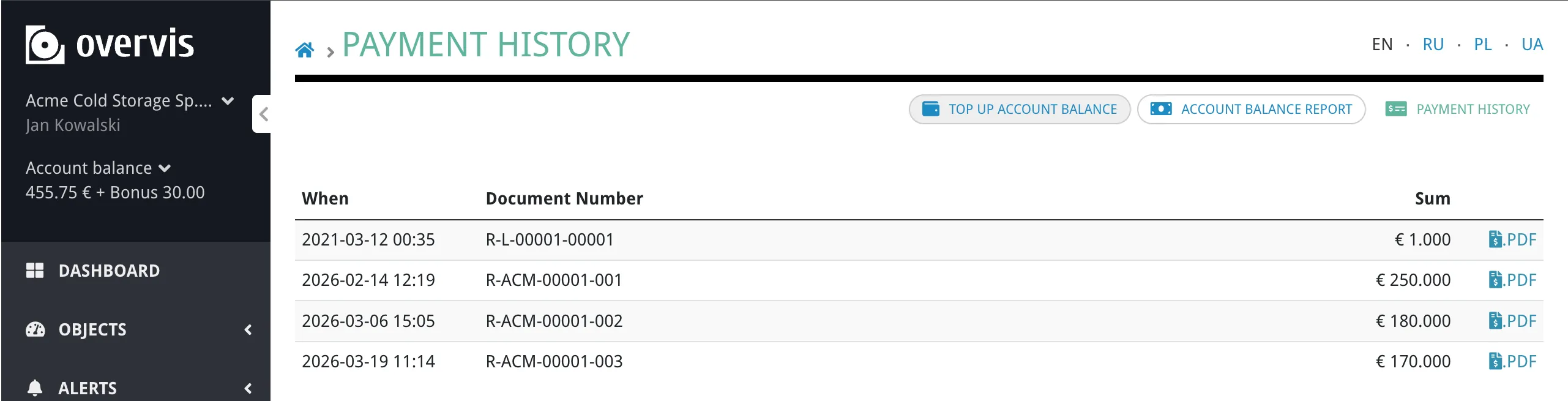
Section titled “Payment History”The Payment History page shows a list of all payment receipts for your organization. Each entry includes:
- When — date and time of the payment
- Document Number — unique receipt identifier (e.g.
R-XXX-123-001) - Sum — payment amount in EUR
Click the .PDF link next to any payment to download the receipt document.
Low Balance Notifications
Section titled “Low Balance Notifications”The system monitors your balance and sends email notifications when it drops below certain thresholds. Notifications are sent when your remaining balance can cover approximately 30 days, 10 days, and 5 days of service at the current daily rate.
When the balance is fully exhausted (reaches zero or below), a final balance exhausted email is sent with a direct link to the top-up page.
You can configure who receives billing notifications by setting the billing email in organization settings.
What happens when the balance runs out
Section titled “What happens when the balance runs out”If your organization’s balance (account + bonus) drops to zero or below during the daily billing run:
- All networks in the organization are disabled by the billing system.
- An email notification is sent to the organization’s billing email.
- Disabled networks stop polling devices — no new readings are collected and no alerts are triggered.
- SMS notifications are also blocked when the balance is insufficient.
Historical data remains safely stored according to your organization’s data retention settings, even after networks are disabled.
To restore service: top up your account balance. Once the balance is positive again, re-enable your networks manually from the network settings page. The system does not re-enable them automatically.
Discount Codes
Section titled “Discount Codes”Overvis supports promotional and referral discount codes that reduce the daily network processing rate. A discount code is applied to a specific network and sets a custom (lower) cost per day for that network.
Discount codes have the following properties:
- A fixed per-day network cost (overriding the default rate)
- An optional expiration period (number of days after activation)
- An optional maximum number of applications (quota)
- An optional registration deadline (the code cannot be applied after this date)
When a discount code expires, the network’s daily rate is automatically reset to the default rate.
Referral cashback
Section titled “Referral cashback”Some discount codes include a referral cashback — a daily credit paid to the referring organization’s account balance for each day the referred network is active. The cashback is calculated from the non-bonus portion of the daily charge only. Cashback entries appear in the Account Balance Report under the Cashback category.
Billing Information
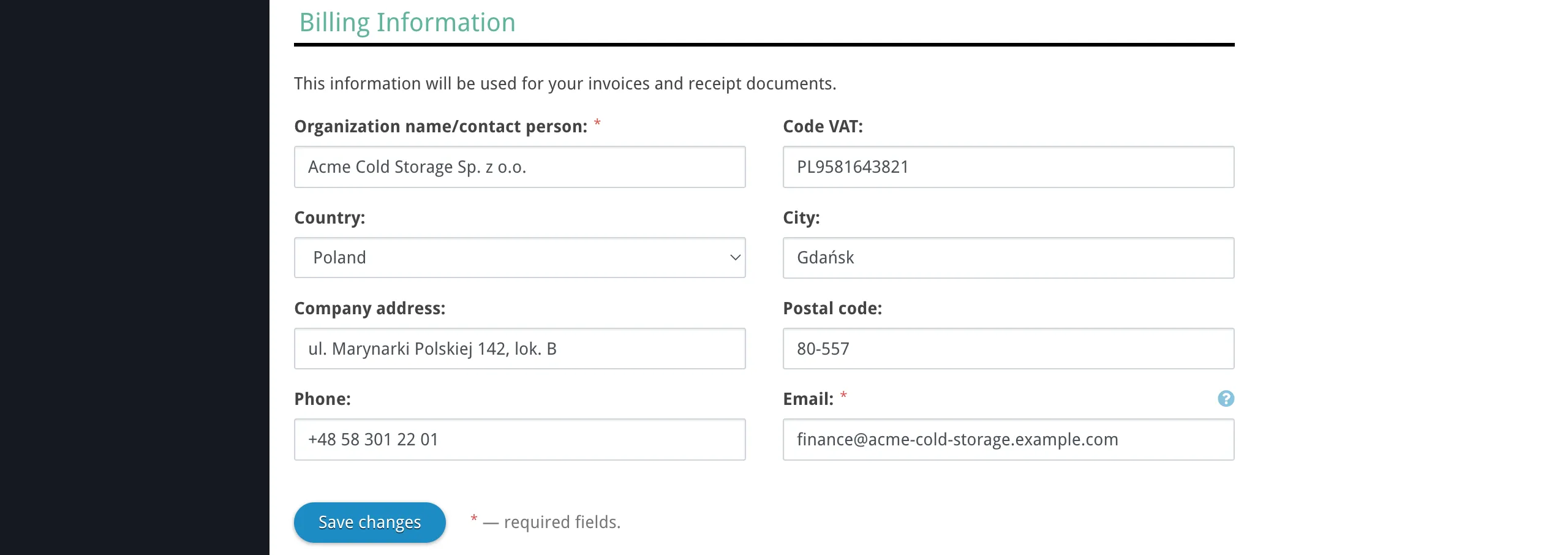
Section titled “Billing Information”Organization settings include a Billing Information section where managers can provide details used on receipts and invoices:
- Organization name / contact person (required)
- VAT code — VAT identification number
- Country and City
- Company address and Postal code
- Phone
- Email (required) — receipts, invoices, and billing notifications are sent to this address
To update these fields, go to Organization settings (click the organization name in the sidebar, then Organization settings) and scroll to the Billing Information section.
Troubleshooting
Section titled “Troubleshooting”My networks were disabled unexpectedly
Section titled “My networks were disabled unexpectedly”Your organization’s balance (account + bonus) dropped to zero or below during the daily billing run. The system automatically disables all networks when the balance is exhausted.
Solution: Check the Account Balance Report to see the charges that led to the zero balance. Top up your balance and manually re-enable your networks from each network’s settings page.
Card payment is not going through
Section titled “Card payment is not going through”Possible causes:
- Your current account balance is close to the maximum allowed. The system limits the total account balance, so the available top-up amount decreases as your balance grows. If your balance is already near the limit, the card payment form may show a message that the top-up feature is temporarily unavailable.
- Your bank is declining the transaction. Contact your bank to verify the card can be used for international EUR payments.
Solution: Try a smaller amount. If the card form is unavailable, use bank transfer or contact support.
I don’t see billing pages or the balance in the sidebar
Section titled “I don’t see billing pages or the balance in the sidebar”Only organization managers (owners and managers) have access to billing pages. If you are a viewer, the balance display and billing menu are not shown.
Solution: Ask an organization manager to upgrade your role, or contact support.
Balance is being charged but I disabled my network
Section titled “Balance is being charged but I disabled my network”The daily charge covers the previous calendar day. If your network was enabled for any part of yesterday, a charge will appear today. After disabling a network, you may see one final charge the following day.
Solution: This is expected behavior. No further charges will appear for this network after the final day’s charge.
SMS notifications stopped working
Section titled “SMS notifications stopped working”SMS notifications require sufficient balance. When the balance is too low, SMS sending is blocked.
Solution: Check your balance and top up if needed. Verify that the SMS notification is still configured in your alert settings. You can switch to email notifications, which are free and unlimited.
Balance dropped faster than expected
Section titled “Balance dropped faster than expected”Possible causes:
- SMS notifications can add unexpected costs, especially if many alerts are triggered.
- Multiple networks are enabled — each network incurs a separate daily charge.
- A discount code expired, resetting the network to the default daily rate.
Solution: Open the Account Balance Report, select the month in question, and expand the SMS notifications and Network processing categories to see individual charges.
Common Questions
Section titled “Common Questions”When exactly are daily charges applied?
Section titled “When exactly are daily charges applied?”The billing system runs once per day and charges each enabled network for the previous calendar day’s service. The exact time of the billing run may vary, but charges always appear for the previous day.
Can I get a refund for unused account balance?
Section titled “Can I get a refund for unused account balance?”Contact Overvis support regarding refunds for account balance. Bonus balance (such as the registration bonus) is non-refundable.
How do I see what I was charged for?
Section titled “How do I see what I was charged for?”Go to the Account Balance Report from the sidebar balance menu. The Expenses history section shows all charges grouped by category. Click on any category row to expand it and see individual records with dates and amounts.
Will I lose my data if my balance runs out?
Section titled “Will I lose my data if my balance runs out?”No. When the balance runs out, networks are disabled and stop collecting new data, but all previously recorded data remains stored according to your organization’s data retention settings. Once you top up and re-enable your networks, data collection resumes.
Can I pause billing temporarily?
Section titled “Can I pause billing temporarily?”You can disable individual networks from their settings page. Disabled networks do not incur daily processing charges. Your data, device configurations, and alert settings remain intact. Re-enable the network at any time to resume service.
How do I apply a discount code?
Section titled “How do I apply a discount code?”Discount codes are applied per network. Open the network details page and click Apply discount code. Enter the code, review the price change on the confirmation page, and click Confirm. Once applied, the code and its effect on pricing are shown on the network details page. You can remove a manually applied code at any time from the same page.
Why is the top-up form showing a lower maximum than expected?
Section titled “Why is the top-up form showing a lower maximum than expected?”The maximum top-up amount is calculated as the configured limit minus your current account balance. For example, if the limit is €1,000 and your current balance is €800, you can top up at most €200.
How are SMS costs determined?
Section titled “How are SMS costs determined?”SMS costs depend on the destination phone number’s country. The cost per message is deducted from your balance at the time the SMS is sent. You can see all SMS charges itemized in the Account Balance Report under the SMS notifications category.
Related Documentation
Section titled “Related Documentation”- Getting Started — creating an account and the free trial bonus
- Organizations & Users — managing your organization and user roles
- Alerts — configuring notifications (including SMS)
- Pricing — current service rates