

Organizations & Users
Overvis Cloud uses organizations to separate equipment, data, and billing between different customers or projects. Each user account can belong to one or more organizations, and each membership has a specific role that determines what the user can do.
Organizations
Section titled “Organizations”An organization is the top-level container in Overvis. All networks, devices, parameters, alerts, visualizations, reports, and billing belong to a specific organization. Data is fully isolated between organizations — users only see the data of the organization they are currently working in.
What an organization contains
Section titled “What an organization contains”Each organization has:
- Networks and devices — all connected equipment and its parameters
- Alerts and notifications — monitoring rules and who gets notified
- Visualizations and reports — dashboards, reading reports, resource consumption reports
- Device templates — reusable device configurations
- Billing and balance — separate account balance and payment history
- Members — users with assigned roles
Organization settings
Section titled “Organization settings”Organization owners and managers can edit the following settings. In the sidebar, this page is opened via Details under your organization name; the page title is Organization settings.
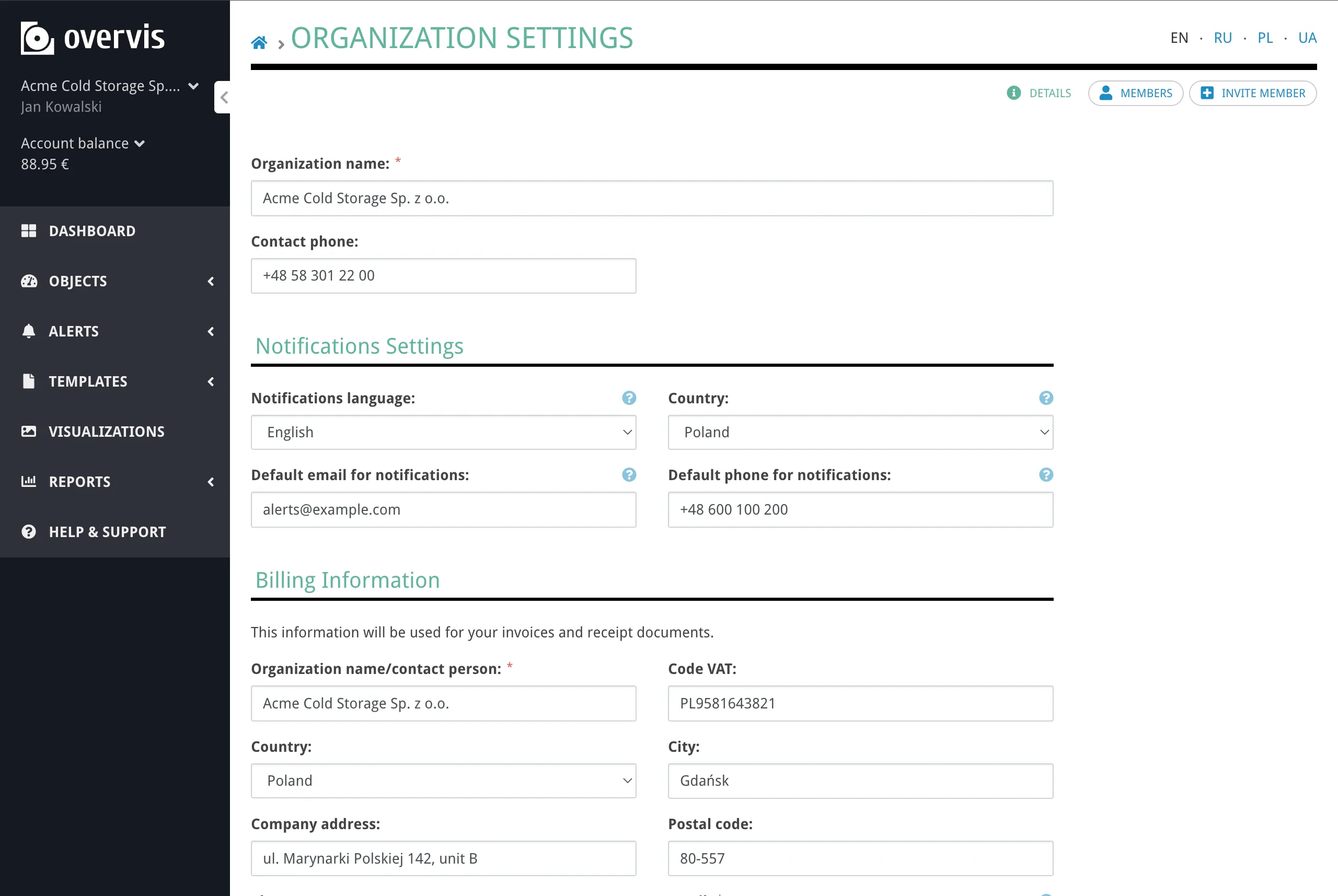
- Name — the display name of the organization (up to 200 characters)
- Country and contact phone
- Notification language — the language used for automated emails and SMS notifications. Available languages: English, Ukrainian, Polish, Russian.
- Default notification email and phone — used as defaults when creating new alerts
- Billing details — full name, country, city, address, ZIP, phone, email, and VAT number (used for invoices)
Owners additionally see member management options on the organization pages.
How organizations are created
Section titled “How organizations are created”An organization is created automatically when you register a new Overvis account. The organization name is set during registration. If you leave it blank, the default name is derived from your email:
- If the email domain has 10 or more characters (e.g.
user@longcompany.com), the domain is used as the name (longcompany.com). - If the domain is shorter (e.g.
user@acme.co), the full email address is used as the name (user@acme.co).
You always belong to at least one organization. If an owner removes you from an organization and you have no other memberships, a new empty organization is automatically created for you.
Working with multiple organizations
Section titled “Working with multiple organizations”If you belong to several organizations (for example, as an owner of your own and as a viewer in a client’s organization), you work in one organization at a time. You can switch between them using the organization selector in the top navigation bar.
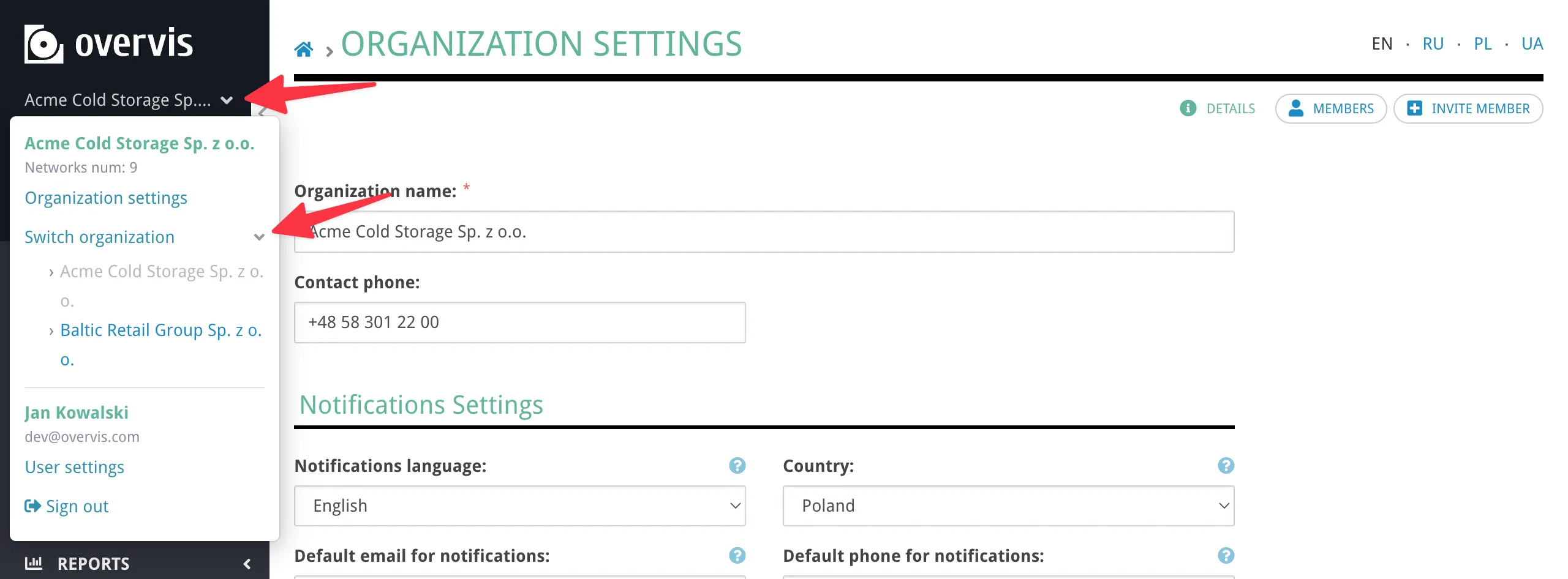
When you log in, Overvis automatically selects an organization where you have an owner or manager role. If you have no owner or manager role in any organization, the first available organization is selected.
User Accounts
Section titled “User Accounts”A user account represents one person. Each account has a unique email address and an auto-generated username, and belongs to one or more organizations.
Registration
Section titled “Registration”To create an account, go to the sign-up page and provide:
- Email address — used for login and notifications (must be confirmed after registration)
- Password — minimum 5 characters
- Organization name (optional) — name for the organization that will be created for you
A username is generated automatically from your email address at registration. You can log in using either your email or username.
If you received an invitation link, you can register through it — your account will be added to the inviting organization instead of creating a new one.
You can log in at cloud.overvis.com using either your email or username along with your password.
Email confirmation
Section titled “Email confirmation”After registration or changing your email, you receive a confirmation email. You have 24 hours to confirm the new email address. During this grace period, the platform treats the email as confirmed and you can use all features normally. After 24 hours without confirmation, some actions (like managing devices or creating alerts) are restricted until you confirm your email.
Account settings
Section titled “Account settings”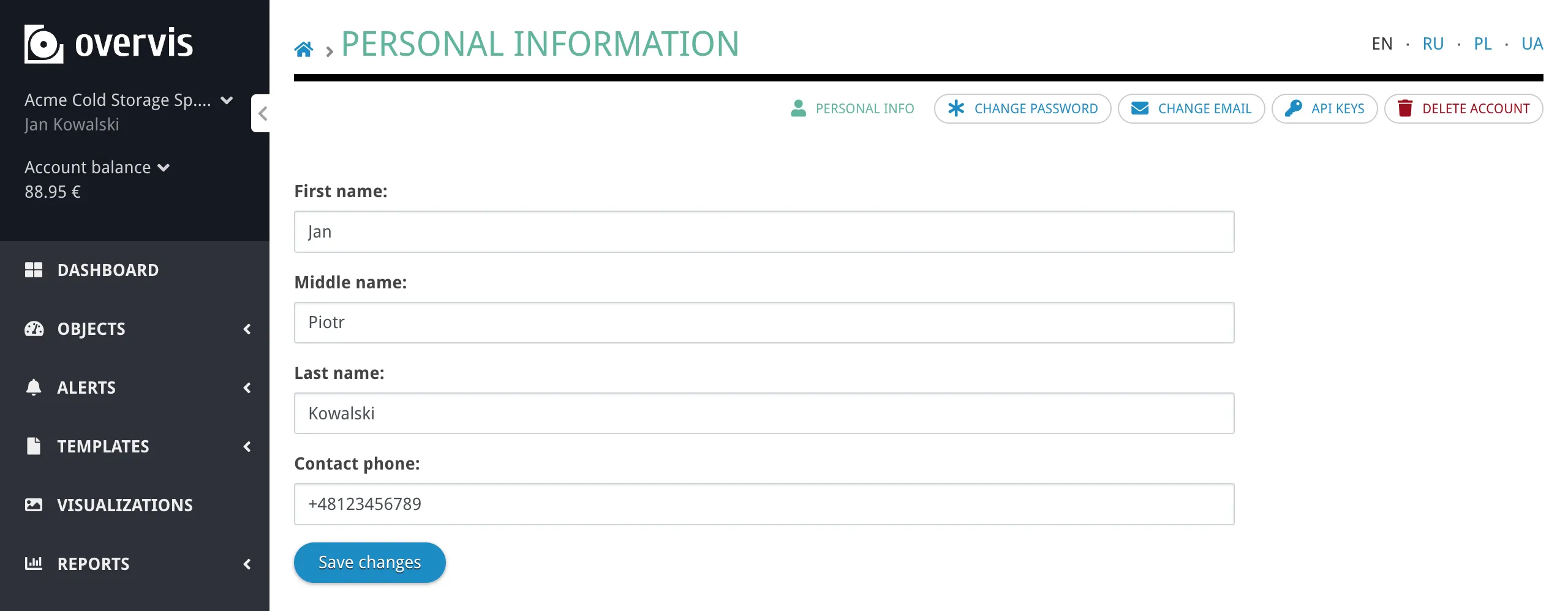
In your account settings (User settings > Personal info in the sidebar), you can change:
- First name, middle name, last name, and phone number
Additional account actions available from the sidebar:
- Change email — requires re-confirmation within 24 hours
- Change password — requires your current password
- API Keys — manage programmatic access tokens (see API Keys)
- Delete account — permanently remove your account
The interface language is changed using the language switcher in the navigation bar (English, Ukrainian, Polish, Russian). This setting is saved to your account.
Deleting your account
Section titled “Deleting your account”You can delete your account from User settings > Delete account. This permanently removes your user account, API keys, and associated data.
Account deletion may be blocked in the following cases:
- You are an owner of an organization that has other members. You must first remove all other members or transfer ownership to another user before deleting your account.
- Your organization has a positive account balance. Contact support to resolve the balance before deleting.
If you are the only member of an organization, that organization and all its networks and devices are deactivated upon account deletion.
Roles and Permissions
Section titled “Roles and Permissions”Each organization membership has exactly one role. The role determines what the user can do within that organization. There are eight roles, split into two groups: full-interface roles (access the complete Overvis management interface) and monitor roles (access only the simplified monitoring interface at /view/).
Full-interface roles
Section titled “Full-interface roles”These roles give access to the full Overvis management interface with varying levels of permissions.
Owner is the highest role. An owner has full control over the organization, including:
- Viewing all data, sending commands to devices
- Creating and editing networks, devices, parameters, alerts, templates, visualizations, and reports
- Inviting, editing, and removing organization members
- Accessing billing, payment history, and account balance
- Editing organization settings
Only owners can manage organization members. There is no limit on the number of owners per organization, but typically there is one.
Manager has the same capabilities as the owner, except they cannot manage organization members. Managers can:
- View all data, send commands to devices
- Create and edit networks, devices, parameters, alerts, templates, visualizations, and reports
- Access billing, payment history, and account balance
- Edit organization settings
Technical Manager is similar to Manager but without billing or organization settings access. Technical managers can:
- View all data, send commands to devices
- Create and edit networks, devices, parameters, alerts, templates, visualizations, and reports
They cannot access billing or payment information, cannot manage members, and cannot edit organization settings.
Operator can view data and send write commands to devices, but cannot change the organization structure. Operators can:
- View all networks, devices, parameters, and reports
- Send write commands to devices (e.g. change a setpoint or toggle a relay)
They cannot create, edit, or delete networks, devices, alerts, or other objects.
Viewer has read-only access. Viewers can:
- View all networks, devices, parameters, dashboards, and reports
They cannot write to devices or modify anything. This role is useful for stakeholders, executives, or anyone who needs to see the data without changing it.
Monitor roles
Section titled “Monitor roles”Monitor roles provide access to the simplified monitoring interface only (the /view/ section). Users with these roles cannot access the full management interface. Monitor roles are designed for wall-mounted displays, field technicians with limited access needs, or external viewers.
Monitor Operator can view monitoring dashboards and send write commands to devices.
Monitor Viewer has read-only access to monitoring dashboards.
Monitor No Parameters can view monitoring dashboards but cannot see the parameters list. This role is only assignable by platform administrators and is not available in the standard invitation or member edit forms.
Binding monitor users to a specific view
Section titled “Binding monitor users to a specific view”Monitor roles can optionally be bound to a specific visualization or resource report. When bound, the user is automatically redirected to that specific view when they log in or navigate outside allowed pages. This is useful for setting up a dedicated display screen that always shows one dashboard or report.
A monitor user can be bound to either a visualization or a resource report, but not both.
Permissions summary
Section titled “Permissions summary”| Capability | Owner | Manager | Technical Manager | Operator | Viewer | Monitor Op | Monitor Viewer |
|---|---|---|---|---|---|---|---|
| View data | ✓ | ✓ | ✓ | ✓ | ✓ | ✓ | ✓ |
| Write to devices | ✓ | ✓ | ✓ | ✓ | ✗ | ✓ | ✗ |
| Edit networks, devices, etc. | ✓ | ✓ | ✓ | ✗ | ✗ | ✗ | ✗ |
| Manage members | ✓ | ✗ | ✗ | ✗ | ✗ | ✗ | ✗ |
| Access billing | ✓ | ✓ | ✗ | ✗ | ✗ | ✗ | ✗ |
| Edit organization settings | ✓ | ✓ | ✗ | ✗ | ✗ | ✗ | ✗ |
| Access full management UI | ✓ | ✓ | ✓ | ✓ | ✓ | ✗ | ✗ |
Managing Members
Section titled “Managing Members”Only the organization owner can manage members — invite new users, change roles, or remove existing members.
Inviting a new member
Section titled “Inviting a new member”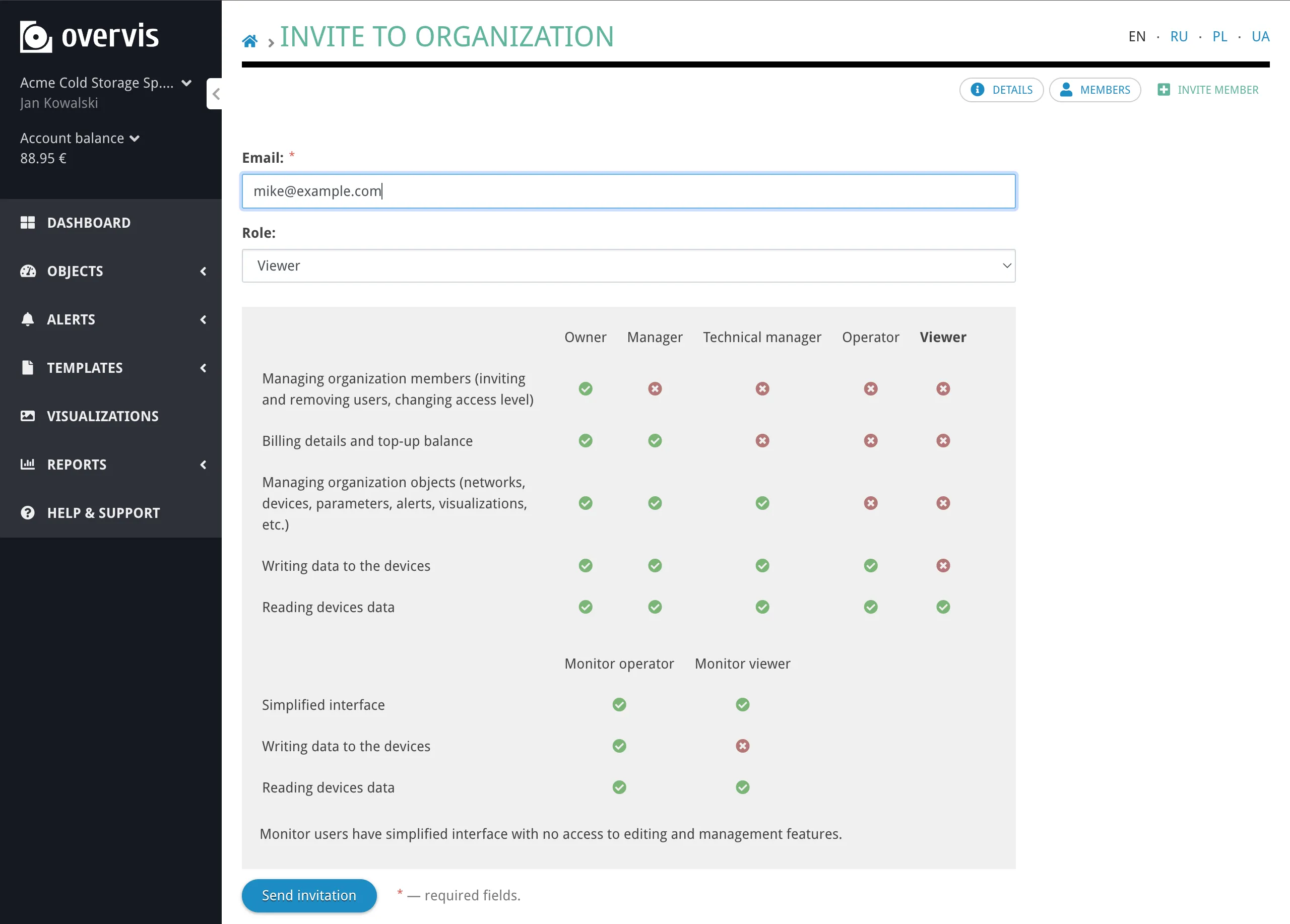
To invite someone to your organization:
- Go to Organization > Members in the sidebar
- Click Invite
- Enter the person’s email address
- Select a role: Manager, Technical Manager, Operator, Viewer, Monitor Operator, or Monitor Viewer
- For monitor roles, optionally select a visualization or resource report to bind the user to
- Send the invitation
The invited person receives an email with a link. The link is valid for 2 days. If they already have an Overvis account, they will be asked to log in and then the invitation is applied. If they don’t have an account, they are taken to the registration page first.
You cannot invite someone directly as an Owner — ownership can only be assigned by editing an existing member’s role.
Viewing members
Section titled “Viewing members”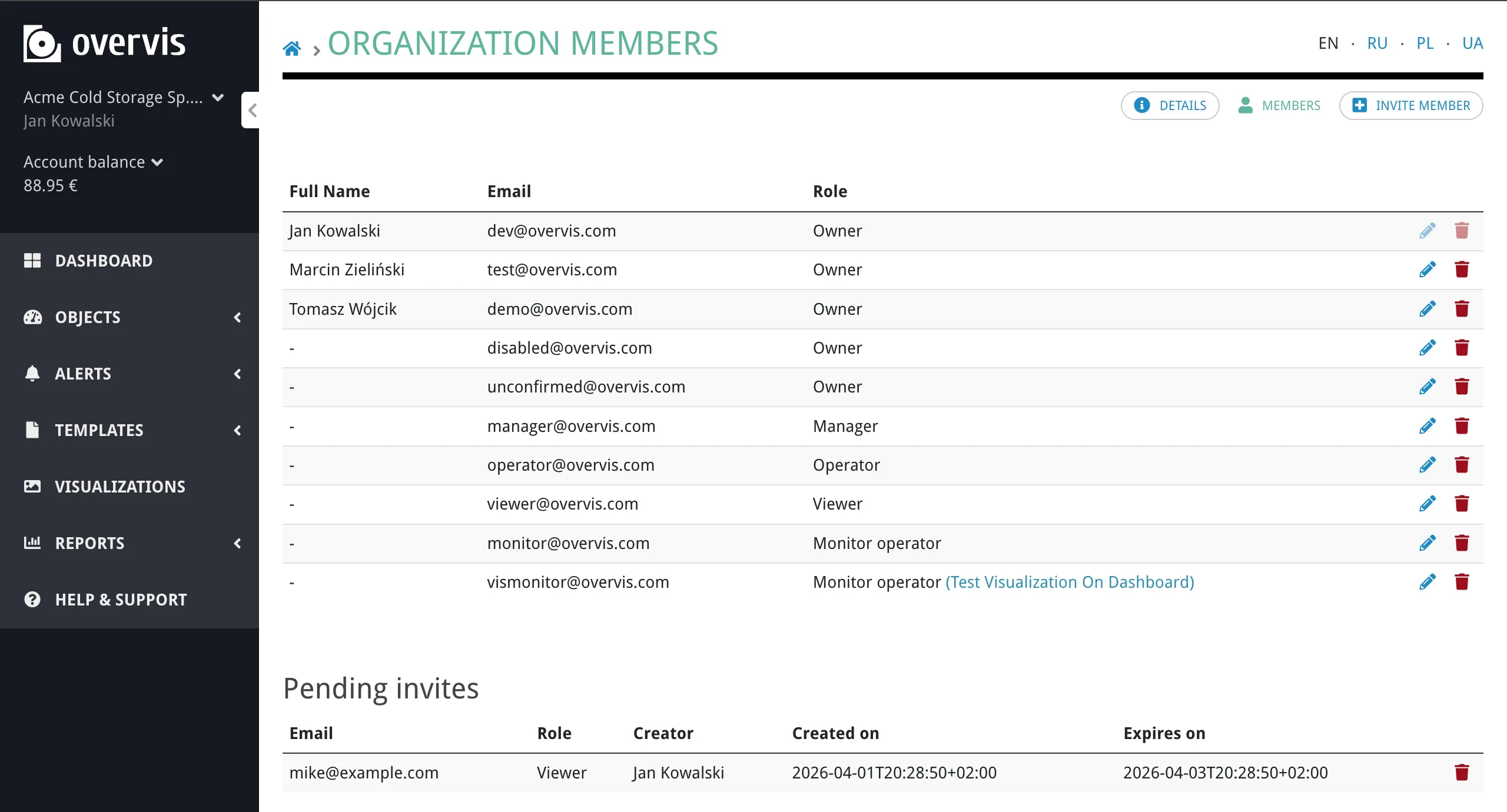
Go to Organization > Members to see all current members and pending invitations. Each entry shows the member’s name (or email if no name is set), their role, and management actions.
Changing a member’s role
Section titled “Changing a member’s role”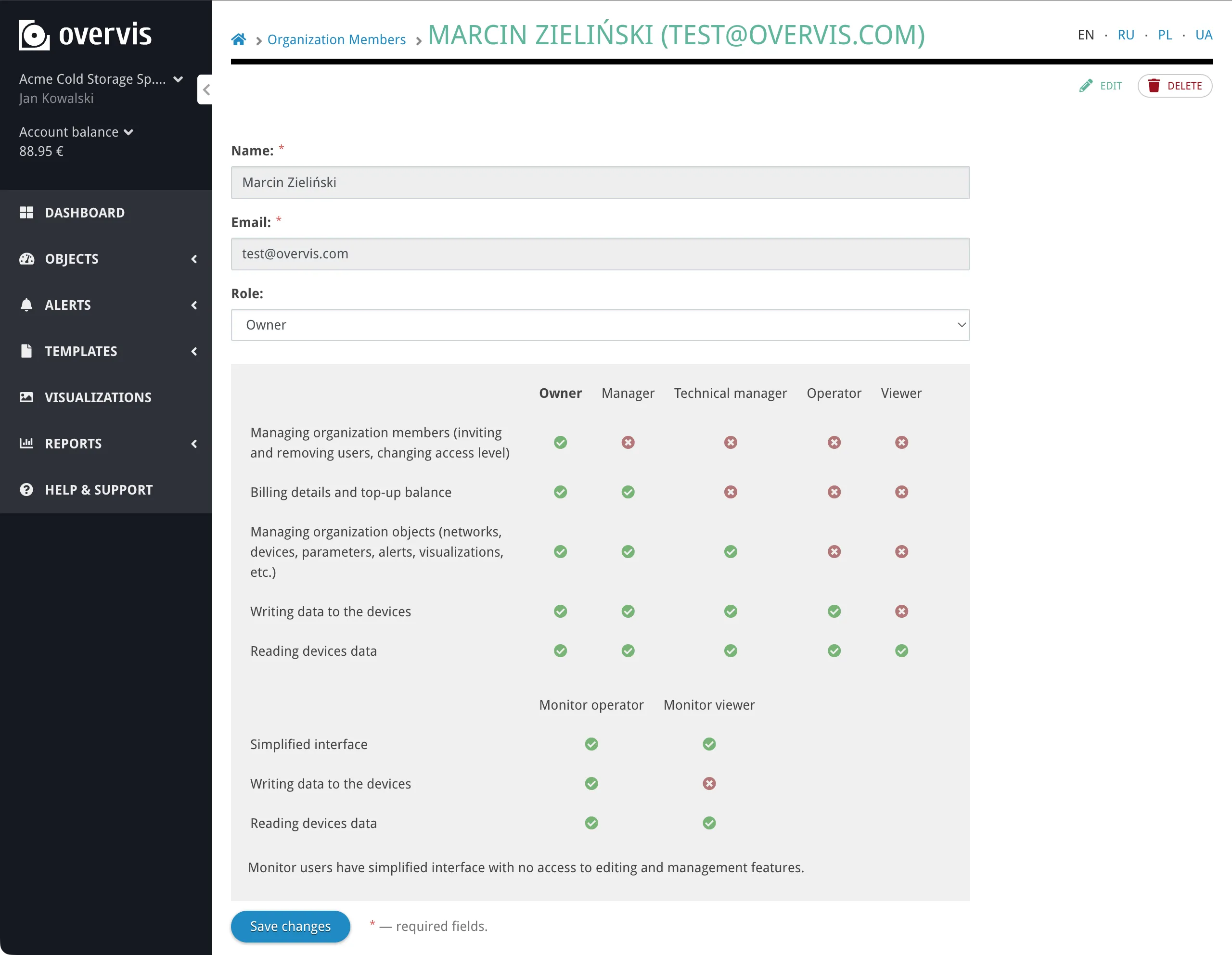
To change a member’s role:
- Go to Organization > Members
- Click the edit (pencil) icon in that member’s row
- Select the new role (including Owner, if needed)
- For monitor roles, optionally set or change the bound visualization or resource report
- Save changes
Changes take effect immediately. This is the only way to grant the Owner role to another user — by editing their existing membership.
Removing a member
Section titled “Removing a member”To remove a member from your organization:
- Go to Organization > Members
- Click the edit (pencil) icon in that member’s row
- Click Remove access and confirm
- Confirm the action
The removed user loses access to the organization immediately and receives an email notification. If they have no other organization memberships, a new empty organization is created for their account automatically.
You cannot remove yourself from the organization through the member management interface.
API Keys
Section titled “API Keys”API keys provide programmatic access to the Overvis REST API. They belong to your user account (not to a specific organization) and inherit all your organization memberships and roles.
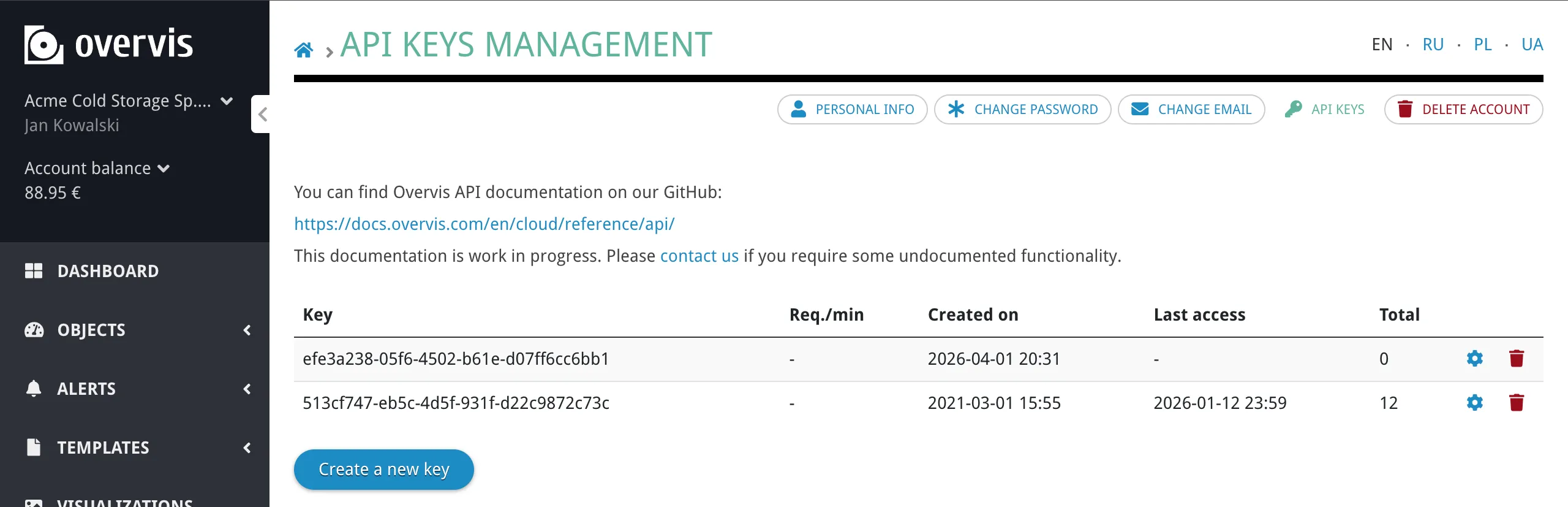
Creating an API key
Section titled “Creating an API key”- Go to User settings > API Keys in the sidebar
- Click Create API Key
- Copy the generated key (UUID) and password — the password is shown only once
You can have up to 10 API keys per account.
Authenticating with an API key
Section titled “Authenticating with an API key”To use the API, first authenticate by sending a POST request:
POST /v1/authenticate/{ "apiKey": "513cf747-eb5c-4d5f-931f-d22c9872c73c", "password": "your_password_here"}The response contains a session token and its expiration time. Use this token to authenticate subsequent API requests. The token expires after a period of inactivity — each API request extends the token’s lifetime automatically.
Managing API keys
Section titled “Managing API keys”From the User settings > API Keys page you can:
- View all your keys and their creation dates
- Set a rate limit — optionally restrict a key to 1–100 requests per minute. When no limit is set, the platform default applies.
- Delete a key — if a key is compromised, delete it immediately and create a new one
Troubleshooting
Section titled “Troubleshooting”I didn’t receive the confirmation email
Section titled “I didn’t receive the confirmation email”- Check your spam or junk folder.
- Make sure you entered the correct email address during registration.
- Try clicking Resend confirmation email on the confirmation prompt page.
- If the problem persists, contact support@overvis.com.
My email confirmation expired
Section titled “My email confirmation expired”If more than 24 hours have passed since registration or email change without confirming, your access to most features is restricted. Go to User settings > Change email, re-enter your email address, and a new confirmation email will be sent. You get another 24-hour window to confirm.
I can’t access billing or organization settings
Section titled “I can’t access billing or organization settings”Only owners and managers can access billing information and edit organization settings. If you need access, ask the organization owner to change your role. You can check your current role in the top navigation bar next to the organization name.
I can’t invite or remove members
Section titled “I can’t invite or remove members”Member management (inviting, editing roles, and removing members) is restricted to the owner role. Managers and other roles cannot manage members. If you need to invite someone, ask the organization owner.
The invitation link has expired
Section titled “The invitation link has expired”Invitation links are valid for 2 days. If the link has expired, ask the organization owner to send a new invitation. The old invitation can be deleted from the members page.
I was removed from an organization and lost my data
Section titled “I was removed from an organization and lost my data”When you are removed from an organization, you lose access to that organization’s data. The data itself is not deleted — other organization members still have access. If you were removed by mistake, ask the organization owner to re-invite you. If you had no other organization memberships, a new empty organization was created for your account automatically.
I can’t delete my account
Section titled “I can’t delete my account”Account deletion is blocked if:
- You are an owner of an organization that has other members. First transfer ownership to another member (edit their role to Owner), then either leave the organization or try deleting again.
- Your organization has a positive account balance. Contact support@overvis.com to resolve the balance.
A monitor user sees the wrong page
Section titled “A monitor user sees the wrong page”If a monitor user is bound to a specific visualization or resource report, they are automatically redirected to that view. To change or remove the binding, the organization owner should edit the member’s settings and update the bound visualization or report.
Common Questions
Section titled “Common Questions”Can I belong to multiple organizations?
Section titled “Can I belong to multiple organizations?”Yes. You can be a member of as many organizations as needed, with a different role in each. Use the organization switcher in the top navigation bar to switch between them. Each organization’s data, billing, and settings are completely separate.
Can an organization have multiple owners?
Section titled “Can an organization have multiple owners?”Yes. There is no limit on the number of owners. However, most organizations have one owner. To make another member an owner, the current owner edits their role from the members page.
How do I transfer ownership of an organization?
Section titled “How do I transfer ownership of an organization?”There is no dedicated “transfer ownership” action. To transfer ownership:
- Make the new owner a member (invite them if they aren’t already)
- Edit their role to Owner
- The new owner can then change your role or remove you if needed
What happens if I’m the only owner and I leave?
Section titled “What happens if I’m the only owner and I leave?”You cannot remove yourself from an organization through the member management interface. If you want to leave, first assign the Owner role to another member, then ask them to remove you.
What is the difference between Operator and Monitor Operator?
Section titled “What is the difference between Operator and Monitor Operator?”Both can view data and send write commands to devices. The difference is in the interface they access:
- Operator uses the full management interface with access to all pages (networks, devices, parameters, reports, etc.), but cannot create or edit objects.
- Monitor Operator only has access to the simplified monitoring interface (
/view/section), which shows dashboards. They cannot access the full management interface.
Can I change the interface language?
Section titled “Can I change the interface language?”Yes. Use the language switcher in the navigation bar to change the interface language. Available languages: English, Ukrainian, Polish, Russian. This setting is saved to your account and applies on your next login.
What is the notification language?
Section titled “What is the notification language?”The notification language is an organization-level setting that controls the language of automated emails and SMS (alert notifications, system messages). It is separate from your personal interface language. Owners and managers can change it in Organization > Settings.
How do API keys relate to organizations?
Section titled “How do API keys relate to organizations?”API keys belong to your user account, not to a specific organization. When you authenticate with an API key, you get a session that has access to all organizations where your account is a member, with the same roles and permissions as your user account.
Related Documentation
Section titled “Related Documentation”- Getting Started — initial account and device setup
- Networks, Devices & Parameters — managing your equipment
- Alerts & Notifications — setting up monitoring rules
- Dashboard — organizing your visualizations