

Device Templates
Every Modbus device needs a set of parameters before Overvis can read data from it — register addresses, value types, names, units, tracking flags, and so on. Setting these up manually for a 50-register energy meter is time-consuming; doing it for twenty identical meters is impractical.
Device templates solve this. A template is a saved, reusable parameter configuration for a specific device model. Select a template when creating a device (or apply one later), and Overvis configures all parameters, dashboard widgets, visualizations, and alerts automatically.
What a template contains
Section titled “What a template contains”A device template stores two kinds of information:
Device-level settings — metadata and communication defaults:
- Name, manufacturer, and version — identify the template (e.g. PAC3200, Siemens, 1.0). A template is uniquely identified within its scope (global or organization) by the combination of name, manufacturer, and version.
- Category — free-text grouping (e.g. Temperature controller, Energy meter).
- Read group size — how many consecutive registers to batch into a single Modbus read request (1–255, default 1).
- Write function — which Modbus write function code to use:
normal(auto-select based on register count),always-6(always use function code 06 — Write Single Register), oralways-16(always use function code 16 — Write Multiple Registers). - Description — optional notes about the device or template.
Parameter definitions — one entry per register or bit the device exposes:
- Name — human-readable label (e.g. Supply temperature).
- Address — Modbus register number (0–65535).
- Register kind —
holding,input,coil, ordiscrete-input. - Value type — how to interpret the raw register data. Overvis supports a wide range of types: signed and unsigned integers of various widths (8/16/32/48/64-bit), floating-point (32-bit and 64-bit), BCD, bit and multi-bit extractions, strings, IP addresses, MAC addresses, and enumeration values. Multi-register types can use big-endian, byte-swapped, or word-swapped byte order. Coil and discrete-input registers must use the
bitvalue type. - Units — measurement units (°C, kW, bar, etc.).
- Category and label — for grouping and short identification in the UI.
- Multiplier and shift — linear scaling applied to the raw value:
displayed = raw × multiplier + shift. Not available for bit, string, IP address, and MAC address value types. - Decimal precision — number of decimal places to display (0–20).
- Bit position (0–15) and bits amount (1–16) — for
bitandbitsvalue types, which bits within a register to extract. - String length — for
byte-strandword-strvalue types, the number of characters (1–255). - Is tracked — whether Overvis stores historical readings for this parameter.
- Is programmable — whether the parameter can be written to from the UI.
- Read as group — whether to include this parameter in grouped reads.
- Auto-add widget — whether to create a dashboard widget for this parameter when applying the template.
- Enumeration mappings — for
enumtype parameters, a table mapping numeric values to human-readable text (e.g.0 → Off,1 → On,2 → Error). - Min/max values — expected value range for validation and display.
Optional extras:
- Alert templates — pre-defined alerts in YAML format. When the template is applied, Overvis can create alerts automatically (e.g. “send email when temperature exceeds 80°C”). See the Alerts Templates Reference for the YAML syntax.
- Device visualization — an embeddable visualization (HTML/JS) that gets attached to the device page.
- Translations — parameter names, descriptions, categories, units, and enumeration labels in multiple languages (English, Ukrainian, Polish, Russian).
Global and organization templates
Section titled “Global and organization templates”Templates exist at two levels:
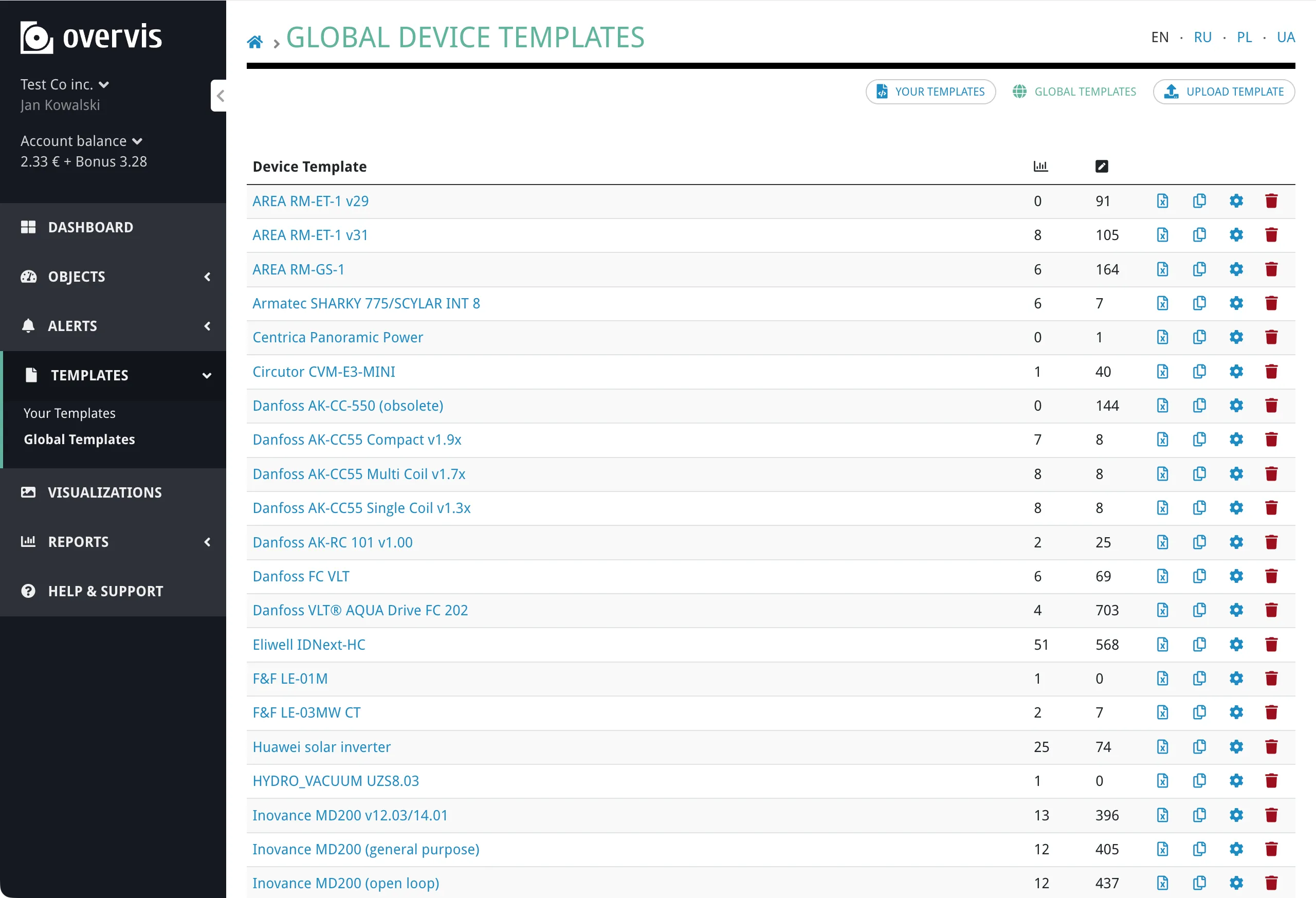
Global templates are maintained by Overvis and available to all users. They cover common industrial devices — controllers, energy meters, PLCs, sensors, and gateways. You cannot edit global templates, but you can clone them into your organization to customize.
Organization templates belong to a specific organization. They are visible only to members of that organization. You can create, edit, clone, delete, and export organization templates freely.
Browsing templates
Section titled “Browsing templates”In the Overvis web interface, go to Templates in the left sidebar:
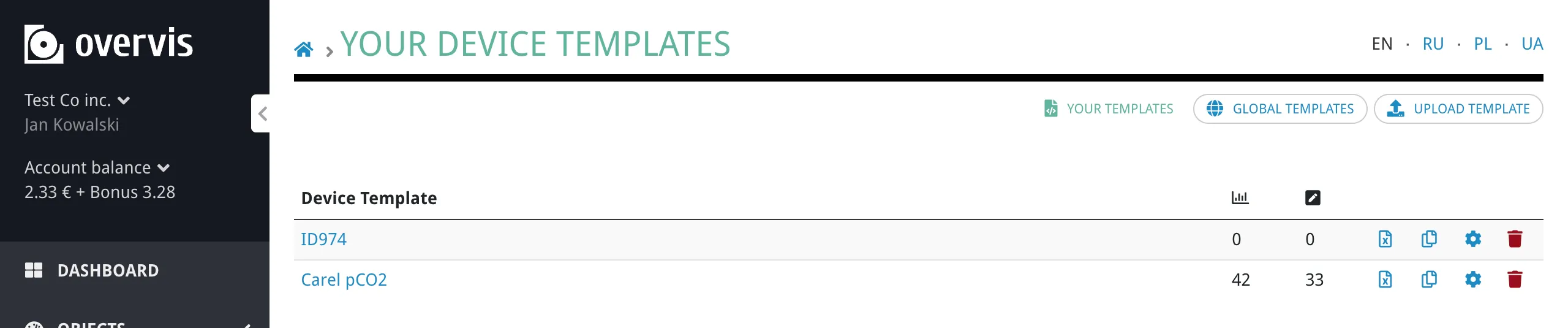
- Your Templates shows templates owned by your current organization.
- Global Templates shows the shared library.
Both views display the template name, manufacturer, version, and parameter count (tracked and programmable). Click a template to see its full parameter list and settings.
Your Templates lists the templates your organization owns or has cloned:
Global Templates lists the shared library maintained by Overvis:
Cloning a global template
Section titled “Cloning a global template”If a global template is close to what you need but requires modifications — different scaling, extra parameters, adjusted alerts — clone it:
- Open the global template.
- Click Copy template.
- The clone appears in your organization templates with the same parameters, ready to edit.
If a template with the same name already exists, the clone is created with a numeric suffix (e.g. PAC3200 (1)). Enumeration mappings and translations are fully copied to the clone.
Creating templates
Section titled “Creating templates”There are two ways to create an organization template: save from an existing device, or import from an Excel file.
From an existing device
Section titled “From an existing device”If you have already configured a device manually — set up all its parameters, units, tracking flags, and so on — you can save that configuration as a template:
- Open the device page.
- Click Save as Template.
- Enter a template name (required). The form only asks for the name; Overvis copies all parameters, register settings, enumeration mappings, read group size, write function, and device metadata into the new template.
- Click Create template.
The new template appears in your organization library with the same parameters, register settings, and enumeration mappings as the device. You can edit name, manufacturer, version, category, and description later on the template settings page.
From an Excel file
Section titled “From an Excel file”For new device models, or when you want precise control over every field, create a template as an Excel .xlsx file and import it.
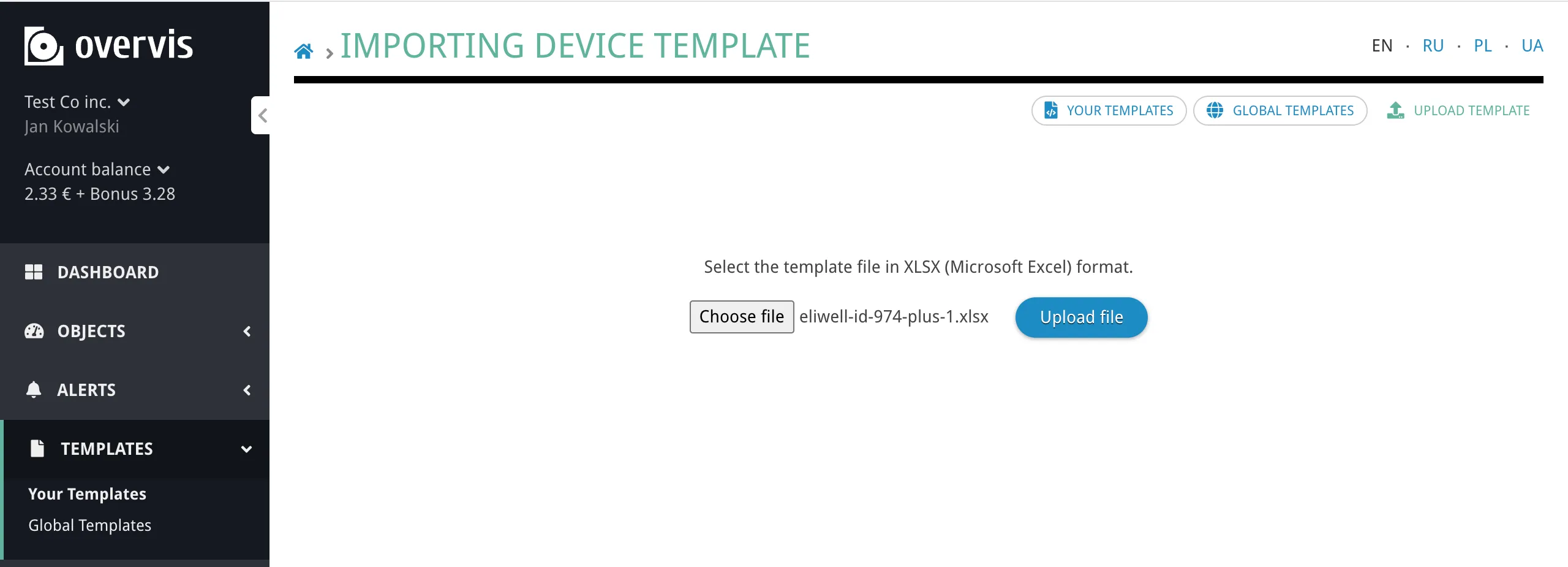
- Go to Your Templates.
- Click Upload Template.
- Upload the
.xlsxfile. - Overvis validates the file structure and content. If there are errors, they are reported with the sheet name, row, and cell reference.
- On success, the template is added to your organization library.
If a template with the same name, version, and manufacturer already exists in your organization, the import replaces it — the old template is deleted and the new one takes its place.
The Excel file must have an Info sheet and a Params sheet. Optional sheets: Visualization (device visualization source code) and Alerts (alert template YAML). No other sheet names are allowed. See the Device Templates Reference for the complete specification.
Editing templates
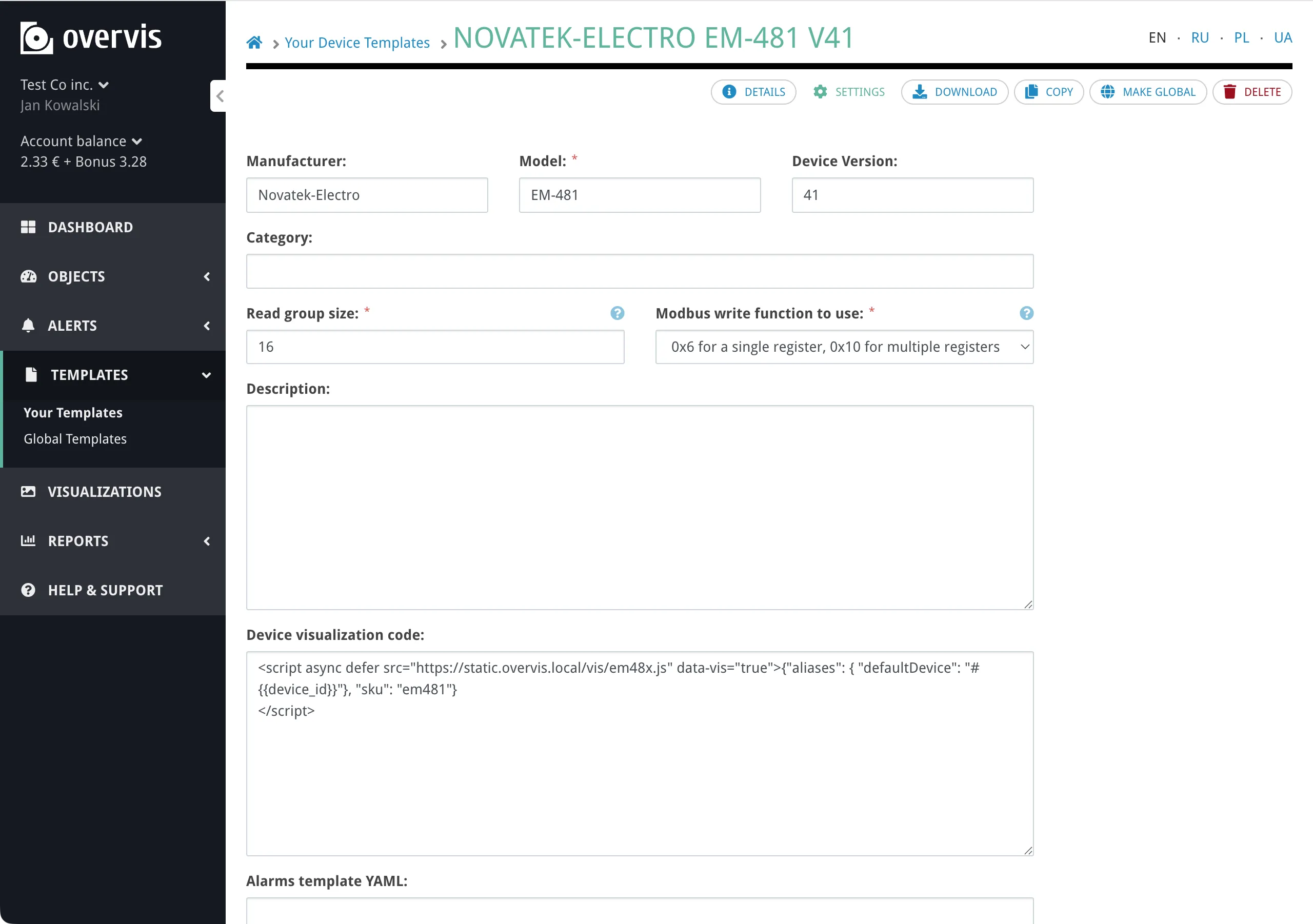
Section titled “Editing templates”After creating or cloning a template, you can edit its metadata (name, manufacturer, version, category, and description) through the template settings page. The settings page also has an Alarms template YAML: field where you can add or edit alert definitions directly, without re-importing the Excel file.
To change individual parameter definitions, export the template to Excel, make changes in the spreadsheet, and re-import.
Exporting templates
Section titled “Exporting templates”Any template — global or organization — can be exported as an .xlsx file. The exported file has the same structure as the import format, so you can round-trip: export, edit in a spreadsheet, and re-import.
Applying a template to a device
Section titled “Applying a template to a device”Templates can be applied when creating a new device or to an existing device at any time.
During device creation
Section titled “During device creation”When adding a device to a network, select a template from the dropdown. The device will be created with all template parameters pre-configured. Overvis records which template was used, so you can see the original template on the device page.
To an existing device
Section titled “To an existing device”- Open the device page.
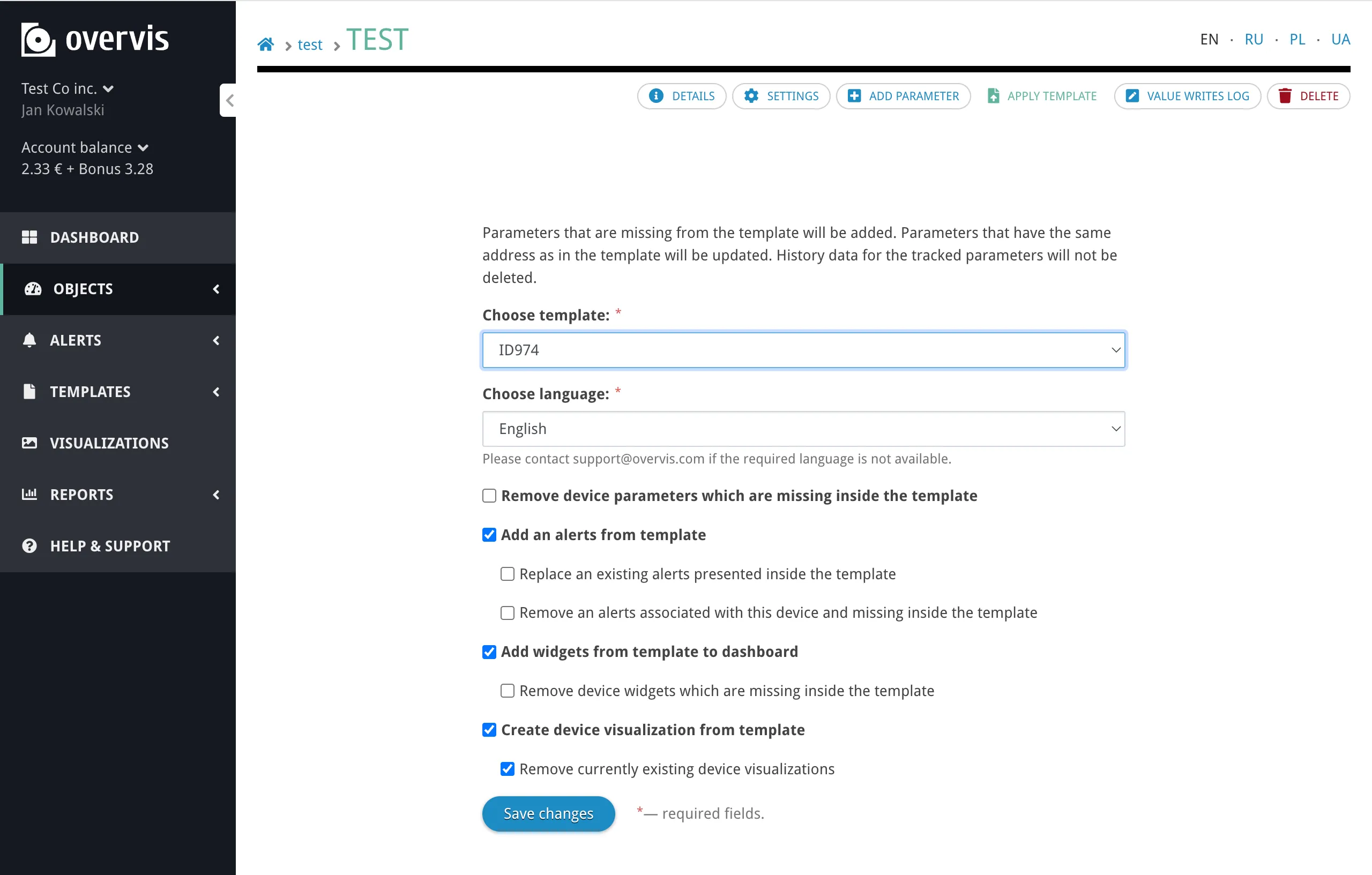
- Click Apply template (action on the device page — the full form title also reads Apply template).
- Select a template (from your organization or global library).
- Choose a language for parameter names (if the template includes translations).
- Configure the apply options using the checkboxes (see below).
- Click Save changes.
Apply options
Section titled “Apply options”When applying a template, you control what happens with several settings:
Parameters:
- Template parameters are matched to existing device parameters by a composite key of register address, register kind, bit position, and bits amount. If a matching parameter already exists on the device, it is updated in place. If not, a new parameter is created.
- Remove device parameters which are missing inside the template — optionally delete any device parameters that do not have a match in the template. Useful when replacing one template with another.
Alerts:
- Add alerts from template — primary checkbox (on by default). When checked, Overvis creates alerts from the template YAML. Two optional nested checkboxes apply only when the primary checkbox is checked:
- Replace existing alerts presented inside the template — remove existing alerts that match a template alert definition, then add template alerts (clean re-apply for those definitions).
- Remove alerts associated with this device and missing inside the template — remove existing alerts that are not defined in the template.
- With only Add alerts from template checked, template alerts are added alongside existing alerts.
- Enabling the first nested checkbox alone applies add and remove presented. Enabling the second nested checkbox alone applies add and remove missing.
- Enabling both nested checkboxes removes all existing alerts, then adds template alerts.
- Uncheck Add alerts from template to skip alert creation (nested checkboxes must be off).
Dashboard widgets:
- Add widgets from template to dashboard — primary checkbox (on by default). When checked, Overvis creates dashboard widgets for parameters marked with auto-add widget in the template.
- Optional nested checkbox Remove device widgets which are missing inside the template — removes dashboard widgets for parameters that are not covered by a template row with auto-add widget enabled (including parameters not linked to the applied template).
- Uncheck Add widgets from template to dashboard to skip widget creation (the nested checkbox must be off).
Visualizations:
- Create device visualization from template — primary checkbox (on by default). When the template includes a device visualization, attach it to the device.
- Nested checkbox Remove currently existing device visualizations (on by default): with both checkboxes on, replace any existing visualization with the template’s version.
- With only Create device visualization from template checked, add the template visualization without removing existing ones.
- Uncheck Create device visualization from template to skip visualization creation (Remove currently existing device visualizations must be off).
After applying, Overvis refreshes the device configuration on the communication operator so polling begins immediately with the new parameters.
Template details
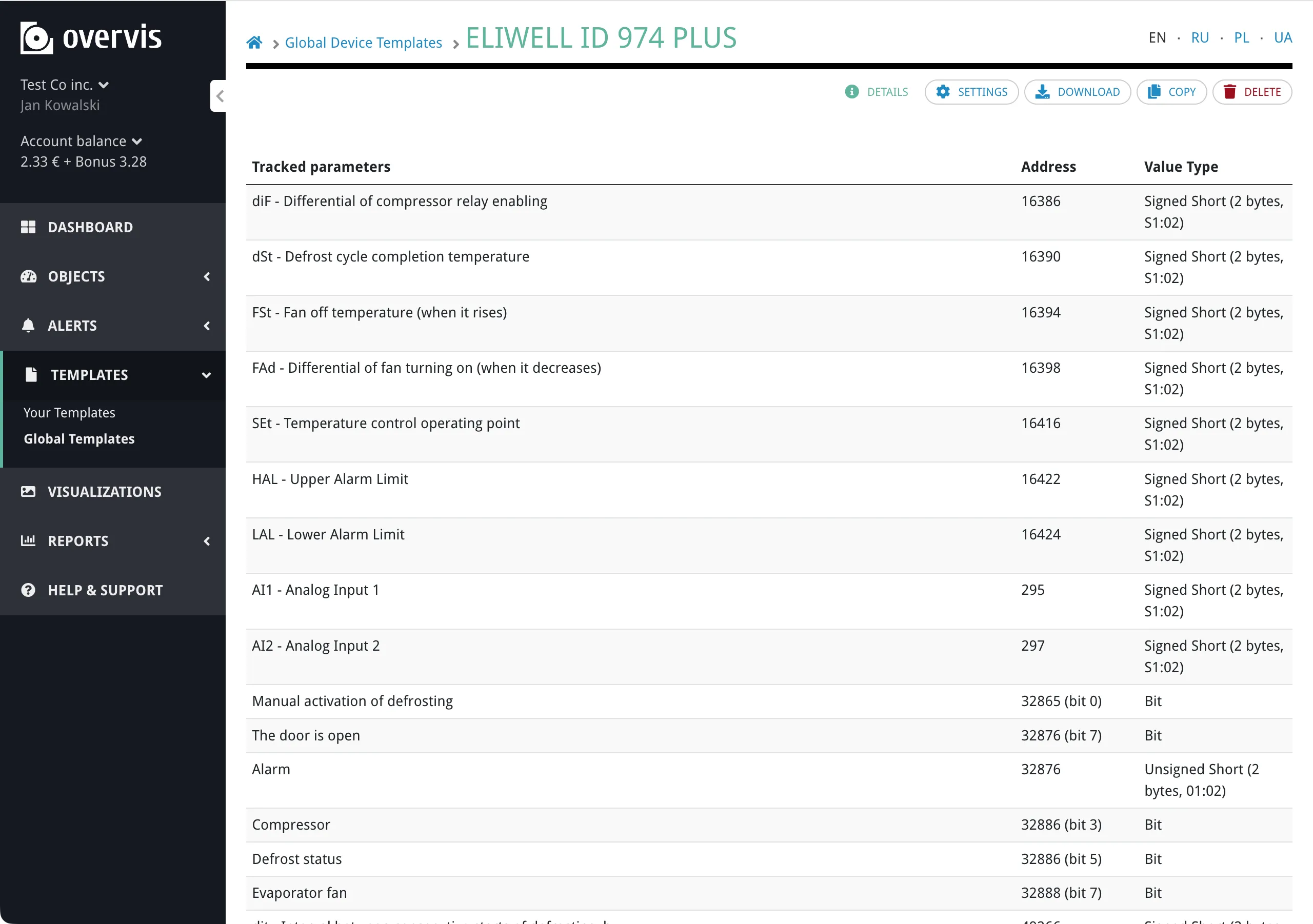
Section titled “Template details”Click on any template to see its full details: device-level settings, the complete parameter list with addresses, value types, tracking flags, and enumeration mappings.
Translations
Section titled “Translations”Templates support multilingual parameter names, descriptions, categories, units, and enumeration labels. The base language is always English. Additional translations (Ukrainian, Polish, Russian) can be included in the Excel file or managed through the template settings.
When applying a template, you choose which language to use. Overvis looks up translations for that language and applies them to parameter names and other text fields. If a translation is missing for a specific field, the English value is used.
Enumeration parameters
Section titled “Enumeration parameters”Some device parameters represent discrete states rather than continuous values — operating modes, error codes, status flags. Templates handle these with the enum value type.
An enumeration mapping defines which numeric register value corresponds to which human-readable text. For example, a status register might map 0 → Stopped, 1 → Running, 2 → Error, 3 → Maintenance.
Enumeration mappings are defined per-parameter in the template and can include translations. When a template with enum parameters is applied, Overvis creates the mapping automatically, so the dashboard and parameter views show the text labels instead of raw numbers.
For more details on how enumeration parameters work, see Networks, Devices & Parameters — Enumeration parameters.
Permissions
Section titled “Permissions”| Action | Required role |
|---|---|
| Browse, view, and export templates | Any organization member |
| Apply a template to a device | Technical manager or higher |
| Import, edit, delete, or clone templates | Technical manager or higher |
| Create a template from a device | Technical manager or higher |
| Make template global (promote to the global library) | Superuser |
Troubleshooting
Section titled “Troubleshooting”Import fails with validation errors
Section titled “Import fails with validation errors”When importing a template from Excel, Overvis validates the file structure and every field value. Common causes of validation errors:
- Missing required sheets — the file must have both an Info sheet and a Params sheet. Any sheet with an unrecognized name causes an error.
- Missing required Info fields — read group size and write function must be present on the Info sheet.
- Invalid value type or register kind — check that the Type and Register Kind columns use exact values from the Device Templates Reference.
- Coil/discrete-input with wrong value type — coil and discrete-input registers must use the
bitvalue type. Other types are not allowed. - Multiplier/shift on incompatible types — bit, string, IP address, and MAC address types do not support multiplier or shift. Set them to 1 and 0 (or leave blank).
- Bit fields on non-bit types — bit position and bits amount should only be set for
bitandbitsvalue types. - Enum without mappings — parameters with
enumvalue type must include at least one mapping in the Represent As column. - Enum translation mismatch — if enum mappings are translated, each language must have the same number of mappings with the same numeric values.
The error message includes the sheet name, row number, and cell reference to help locate the issue.
Parameters not updating after template apply
Section titled “Parameters not updating after template apply”If applying a template does not update existing parameters as expected:
- Matching is by address and register kind, not by parameter name. A template parameter updates an existing device parameter only when both share the same register address, register kind, bit position, and bits amount. If these differ (e.g. you changed the address in the template), the old parameter stays and a new one is created.
- Check for duplicate addresses — if the device has two parameters at the same address and register kind, matching behavior may be unexpected. Clean up duplicates before applying.
Alerts not created from template
Section titled “Alerts not created from template”- Check the alert YAML syntax — invalid YAML prevents alert creation. The Alerts Templates Reference has the full specification.
- Check that referenced parameters exist — each alert condition references a parameter by address and register kind. If the referenced parameter is not in the template, the alert cannot be created.
- Check the apply options — make sure Add alerts from template is checked in the apply form (and that alert YAML and referenced parameters are valid).
Device not polling after template apply
Section titled “Device not polling after template apply”After applying a template, Overvis sends the updated configuration to the communication operator. If the device is not polling:
- Check the device connection status — the gateway must be online for the operator to receive the new configuration.
- Wait a few seconds — the operator may take a moment to apply the new configuration and start polling.
- Check the parameter list — make sure the template added at least one tracked parameter. Parameters that are not tracked are not polled.
Template not appearing after import
Section titled “Template not appearing after import”- Check for errors — if the import page shows no errors but the template doesn’t appear, try refreshing the page.
- Check the correct organization — templates are scoped to your current organization. Make sure you are viewing the correct organization’s templates.
- Same name replacement — if a template with the same name, manufacturer, and version already existed, it was replaced. The template is there but the old content was overwritten.
Common questions
Section titled “Common questions”Can I apply multiple templates to the same device?
Section titled “Can I apply multiple templates to the same device?”Yes. You can apply templates sequentially. Each apply merges or replaces parameters based on the matching logic (address, register kind, bit position, bits amount). To combine parameters from two templates, apply the first one, then apply the second without enabling Remove device parameters which are missing inside the template.
What happens to existing parameters when I apply a template?
Section titled “What happens to existing parameters when I apply a template?”By default, existing parameters are kept. Parameters that match a template parameter (by address, register kind, bit position, and bits amount) are updated with the template’s settings. Template parameters that don’t match any existing parameter are added as new parameters. Enable Remove device parameters which are missing inside the template to delete unmatched device parameters.
How do I update a template across many devices?
Section titled “How do I update a template across many devices?”There is no bulk re-apply feature. To update all devices using a template, import the updated template, then apply it to each device individually. Use Remove device parameters which are missing inside the template if you want each device to match the template exactly.
Can I share templates between organizations?
Section titled “Can I share templates between organizations?”Not directly. Templates belong to one organization or to the global library. To share a template, export it as an .xlsx file and import it into the other organization. The global library is shared across all organizations but can only be modified by superusers.
What is the difference between global and organization templates?
Section titled “What is the difference between global and organization templates?”Global templates are maintained by Overvis, available to everyone, and read-only. Organization templates belong to your organization, are private to your members, and can be freely edited. Clone a global template to your organization if you need to modify it.
Can I edit individual parameters in a template without re-importing?
Section titled “Can I edit individual parameters in a template without re-importing?”No. The web interface only allows editing template metadata (name, manufacturer, version, category, description) and the alert YAML. To change parameter definitions, export the template to Excel, edit the spreadsheet, and re-import.
What happens if I delete a template that devices were created from?
Section titled “What happens if I delete a template that devices were created from?”Nothing breaks. The devices keep their parameters and continue operating normally. The device’s reference to the template is cleared, but no parameters or settings are removed.
Further reading
Section titled “Further reading”- Device Templates Reference — complete technical specification of the Excel file format, all supported value types, alert YAML syntax, and validation rules.
- Networks, Devices & Parameters — how parameters, tracking, and communication settings work.
- Connecting Equipment — setting up controllers and wiring Modbus devices.
- Dashboard — monitoring parameters and widgets.