

Build a cold-room dashboard
Ta treść nie jest jeszcze dostępna w Twoim języku.
This tutorial turns the cold-room parameters into a board an operator can use: live values with a trend line, a setpoint they can change, and a warning color when the room is too warm. You build it in the browser; no code is needed.
You need the Cold room tutorial workspace from Build your first workspace
and the Editor, Admin, or Owner role. Allow about 15 minutes.
Create the board
Section titled “Create the board”- Open Setup, then Dashboards.
- Select Create dashboard.
- Choose the Value tiles template, name the dashboard
Cold room, and create it. - Open Cold room from the sidebar. The board has one empty page.
Add the cold-room values
Section titled “Add the cold-room values”- Select Add tiles from a device.
- Under Device branch, choose
Cold room. - Select Select all (3) and keep New section.
- Select Add tiles (3).
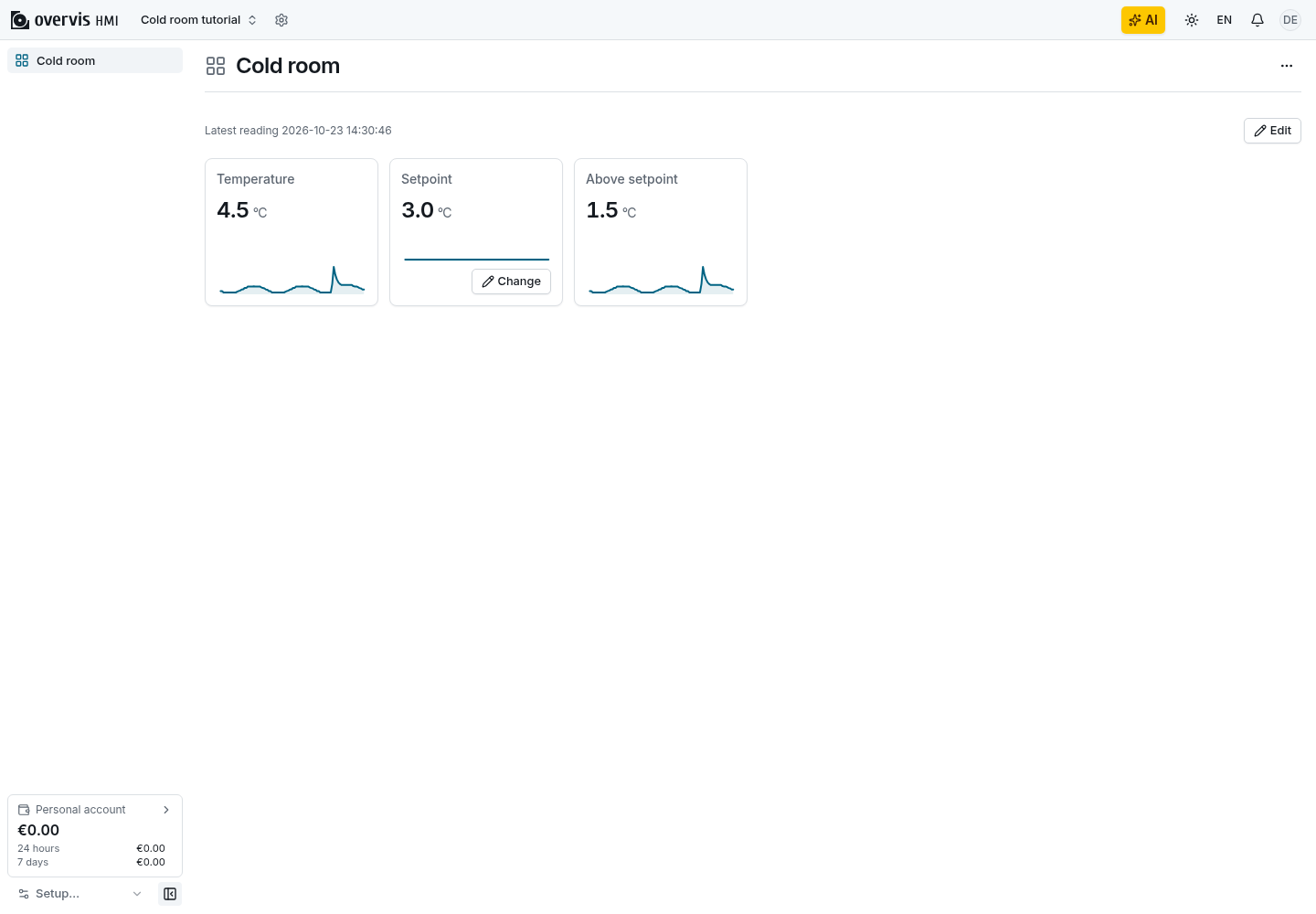
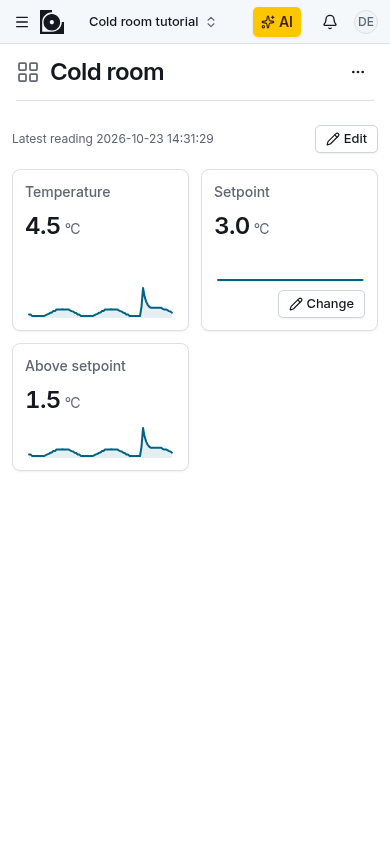
Each parameter gets a value tile named after it, with a 24-hour trend line because its readings are recorded every 10 seconds. A tile shows No history until the first readings of the last 24 hours are stored, and its trend line fills in as readings accumulate over the day.
Let operators change the setpoint
Section titled “Let operators change the setpoint”- Select Edit to enter edit mode.
- Open the menu of the Setpoint tile and select Edit tile.
- Turn on Allow changing the value, and select Save.
The Setpoint tile now has a Change button for operators and above. The other tiles only show their values.
Color the room when it is too warm
Section titled “Color the room when it is too warm”- Open the menu of the Above setpoint tile and select Edit tile.
- Under Colors, select Add rule.
- Leave Compare empty, choose greater than as the Condition, and enter
2. - Choose Warning as the Color and enter
Too warmas the Label. - Check the Preview and select Save.
- Select Done to leave edit mode.
The tile turns orange and shows Too warm whenever the room is more than 2 °C above the setpoint.
Try the board
Section titled “Try the board”- On the Setpoint tile, select Change.
- Enter
3.0as the New value, select Review, check the values, and select Write. - Open Setup → Parameters, write
6to Temperature, and go back to the board.
Above setpoint shows 3.0 °C in the warning color with Too warm. Write 4.5 to
Temperature again to clear it.
The board works for any equipment: add tiles from a device’s branch the same way. More tile types, page layouts, and wall-display settings are in Build a value board without code. Continue with Use the Overvis HMI assistant.