

Use the Overvis HMI assistant
Ta treść nie jest jeszcze dostępna w Twoim języku.
In this tutorial, we ask the assistant about a value on the Cold room dashboard, then let it change the setpoint and check the new value on the dashboard. You need the Cold room dashboard from Build a cold-room dashboard and the operator role or higher. Any other dashboard with a writable value works the same way.
Open the assistant beside the dashboard
Section titled “Open the assistant beside the dashboard”- Open the Cold room dashboard.
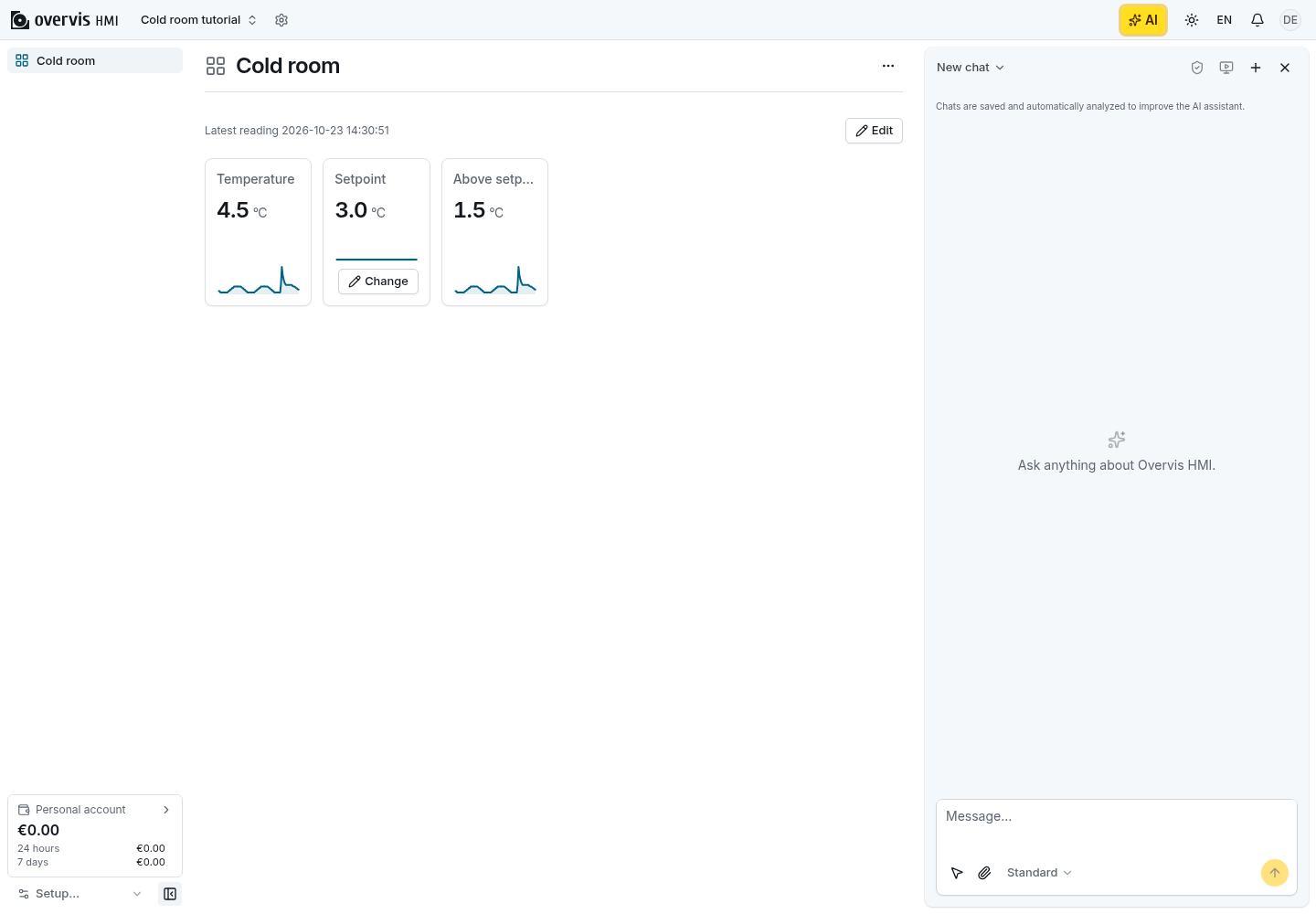
- Select AI in the header.
The assistant panel opens beside the dashboard, with the notice that chats are recorded and the Chat ID at the top.
Ask about a value on the page
Section titled “Ask about a value on the page”- Select the pointer button beside the chat input. Page elements get an outline as you move over them.
- Click the Setpoint tile on the dashboard. A numbered chip for it appears in the message box.
- Type
What is this value, and where does it come from?and press Enter.
The assistant answers in the chat. It names the Setpoint parameter and its current value, because the selected element and the page gave it the parameter ID. While it works, the chat shows the tools it uses.
Ask for a change
Section titled “Ask for a change”- Type
Set the setpoint to 3.5 °C.and press Enter.
Instead of changing the value at once, the assistant shows an approval card. The card names the Setpoint parameter and shows its value before and after the change, with Allow and Don’t allow below.
Approve the change
Section titled “Approve the change”- Read the card. Check that it names the Setpoint parameter and the value
3.5. - Select Allow.
The assistant writes the value and confirms the new value in the chat.
Check the result
Section titled “Check the result”- Look at the Setpoint tile on the dashboard. It now shows
3.5 °C. - Select Change on the tile, enter
3.0, select Review, and then Write.
The setpoint returns to 3.0 °C. We asked the assistant about a value, let it change that value
through an approval card, and checked the result on the page.
Next steps
Section titled “Next steps”- Get help from the assistant has the steps for documents, links, dashboard drafts, and problem reports.
- Assistant chat describes levels, Auto-allow, the message queue, and how chats keep working in the background.