Novatek-Electro EM-482 Documentation
https://www.overvis.com/docs/uk/em-482/
2026-07-30
 Novatek-Electro EM-482 Documentation Novatek-Electro EM-482 Documentation |
|---|
Novatek-Electro EM-482
EM-482 та EM-482-1 — це конвертери протоколів виробництва NOVATEK-ELECTRO LTD. Вони забезпечують зв’язок MODBUS між клієнтами та серверами в мережах TCP та між пристроями з інтерфейсом RS-485 через Wi-Fi. Ключові особливостіSection titled “Ключові особливості”
Типові випадки використанняSection titled “Типові випадки використання”
ДокументаціяSection titled “Документація”
Технічна довідкаSection titled “Технічна довідка”
Додаткові ресурсиSection titled “Додаткові ресурси”
ПідтримкаSection titled “Підтримка”
|
| Novatek-Electro EM-482 Documentation |
|---|
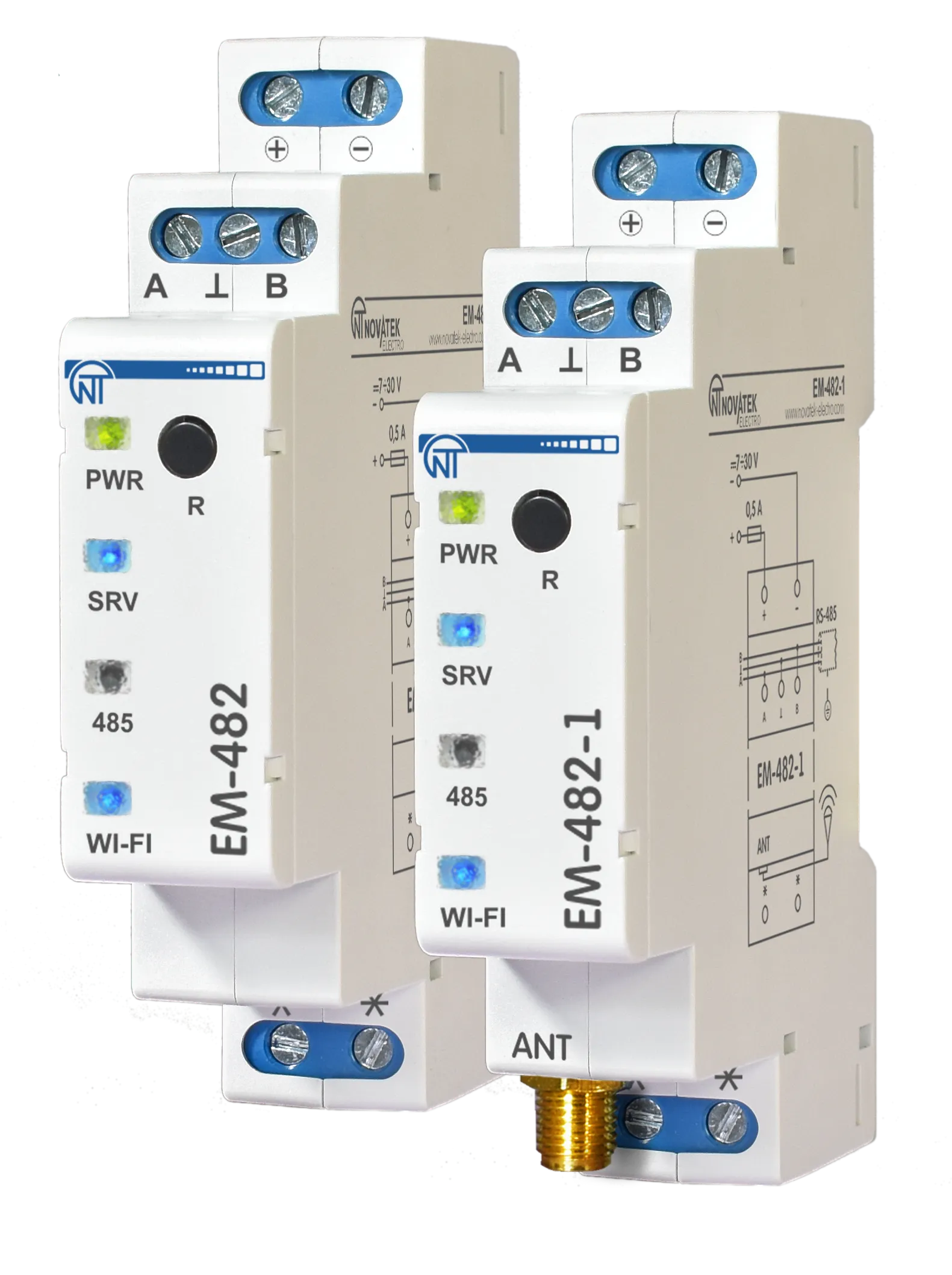
Quick Start GuideThis guide walks you through setting up your EM-482 Protocol Converter from wiring to successful connection in about 15 minutes. EM-482 provides Modbus communication between clients and servers in TCP networks and between devices at RS-485 interface. What You’ll NeedSection titled “What You’ll Need”From the delivery box: EM-482 device (and Wi-Fi antenna, if it is EM-482-1 model to be installed in poor signal environment). You’ll also need:
Step 1: Physical SetupSection titled “Step 1: Physical Setup”Mount your EM-482 on a standard 35mm DIN rail in a well-ventilated location. The device operates from -35°C to +45°C, but avoid areas with excessive vibration, humidity, or corrosive atmospheres. Before making any electrical connections, ensure all devices are powered off. Tighten terminal screws to 0.4 N·m — enough for solid contact without damage. Antenna connection: If it is EM-482-1 model, place the antenna in reach of the Wi-Fi access point (e.g. outside the metal case where the device is mounted). Connect the antenna cable to the RS-485 wiring: Connect twisted-pair cable to EM-482’s Power: Connect 12V DC power to the
Step 2: Power OnSection titled “Step 2: Power On”When you apply power, all LEDs light up briefly during the 2-second initialization, then the device spends 10-30 seconds establishing Wi-Fi connection. The The Step 3: Switch to Wi-Fi Setup ModeSection titled “Step 3: Switch to Wi-Fi Setup Mode”
Step 4: Access Web Interface and ConfigureSection titled “Step 4: Access Web Interface and Configure”
Step 5: Connect to Overvis Cloud (Optional)Section titled “Step 5: Connect to Overvis Cloud (Optional)”Overvis Cloud provides remote monitoring and control through a web dashboard. The device label includes a QR code and PIN for quick setup.
Troubleshooting cloud connection:
TroubleshootingSection titled “Troubleshooting”The The The The Cannot access EM-482 web interface: Check the EM-482 is in setup access point mode (the LEDs are blinking alternately). Check your device is connected to EM-482 access point. Use
Intermittent connection drops: Check that the power supply voltage is within the required range (7-30V DC) and can provide sufficient current (up to 110mA). Look for electrical noise or interference sources near the device. Update EM-482 firmware to the latest version. RS-485 devices not responding: Verify the RS-485 wiring is correct (A and B terminals). Check that the RS-485 bus termination is properly configured. Verify Modbus RTU/ASCII settings match the connected devices. See the Modbus Interface documentation for detailed communication settings. Service Button Quick ReferenceSection titled “Service Button Quick Reference”The Quick press: restart device Hold 2-8 seconds: switch Wi-Fi setup mode on and off Hold 8+ seconds: Factory reset (erases all settings) What’s Next?Section titled “What’s Next?”
Need Help?Section titled “Need Help?”For technical support and assistance:
|
| Novatek-Electro EM-482 Documentation | |||||||||||||||||||||||||||||||||||||||||||||||||||||||||||||||||||||||||||
|---|---|---|---|---|---|---|---|---|---|---|---|---|---|---|---|---|---|---|---|---|---|---|---|---|---|---|---|---|---|---|---|---|---|---|---|---|---|---|---|---|---|---|---|---|---|---|---|---|---|---|---|---|---|---|---|---|---|---|---|---|---|---|---|---|---|---|---|---|---|---|---|---|---|---|---|
EM-482 Operating Manual
This Operating Manual explains the design, safety requirements, operating rules, and maintenance procedures for the EM-482 and EM-482-1 Protocol Converters (hereinafter referred to as “Protocol Converter”, “Product”, or “EM-482”; the name “EM-482-1” is used when the characteristics differ). Safety informationSection titled “Safety information”During operation and maintenance, observe the requirements of applicable regulatory documents, including:
Only qualified personnel who have studied this Operating Manual should perform installation, adjustment, and maintenance. When used in accordance with this manual, the Overvis EM-482 is safe in operation. EM-482 meets the requirements of the following standards: EN 60947-1; EN 60947-6-2; EN 55011; EN 61000-4-2. The device contains no hazardous substances in excess of maximum permissible limits. The development and production quality management system complies with ISO 9001:2015. General descriptionSection titled “General description”The Protocol Converter EM-482 provides MODBUS communication between clients and servers in Wi-Fi TCP networks and between devices at RS-485 interface. The Product is available in two versions (both with a built-in antenna):
The Protocol Converter:
EM-482 provides the following capabilities:
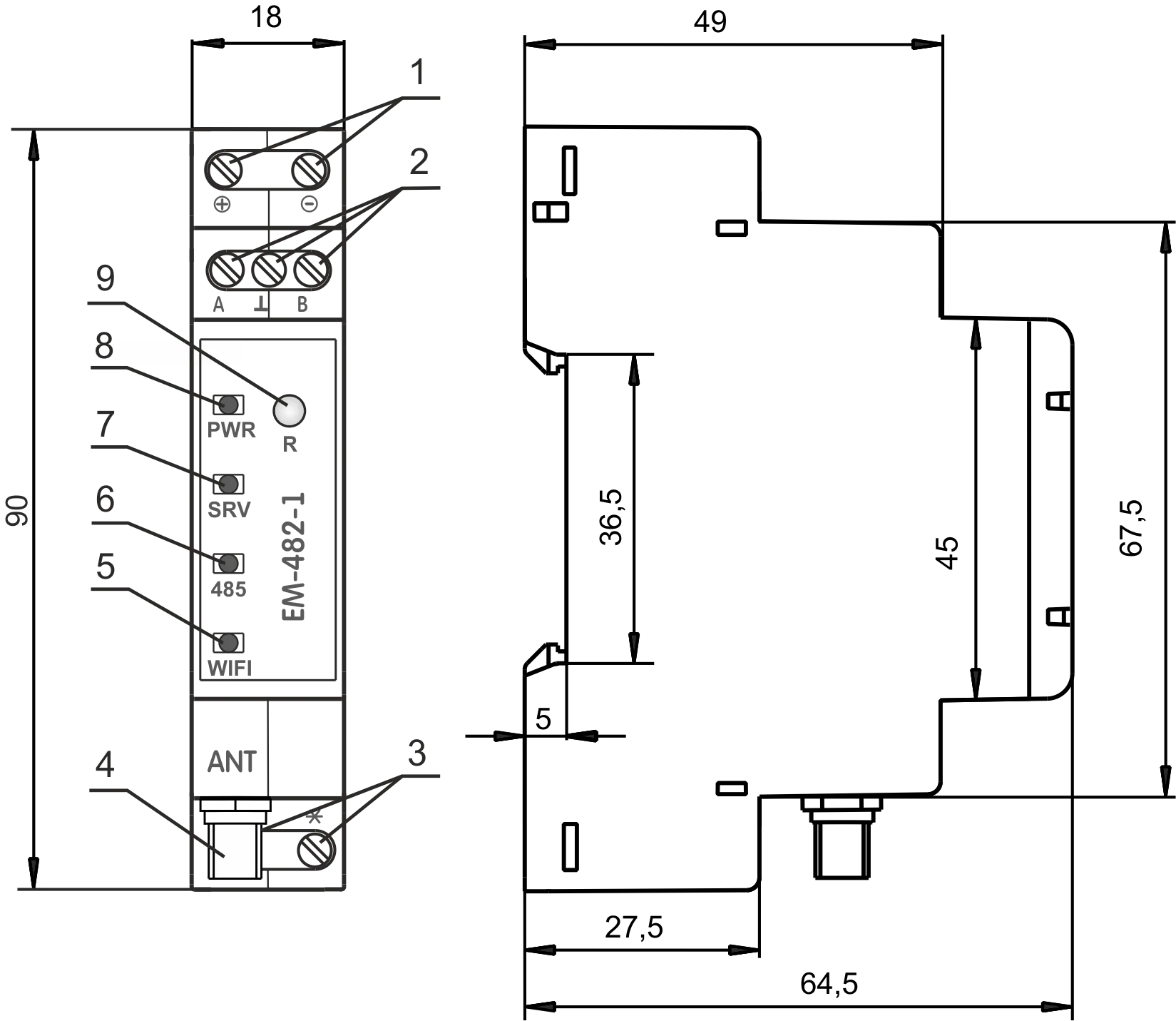
Overall and Mounting Dimensions and ControlsSection titled “Overall and Mounting Dimensions and Controls”
Figure 1 – Overall and mounting dimensions and controls
Operating conditionsSection titled “Operating conditions”EM-482 is designed for operation under the following environmental conditions:
Delivery setSection titled “Delivery set”Table 1 – EM-482 delivery set
Technical SpecificationsSection titled “Technical Specifications”Table 2 – EM-482 technical specifications
* Establishing connections in Wi-Fi / Internet networks can take more time. The Product remains functional at any position in space. Case material: self-extinguishing plastic. Installation and wiringSection titled “Installation and wiring”Before you start:
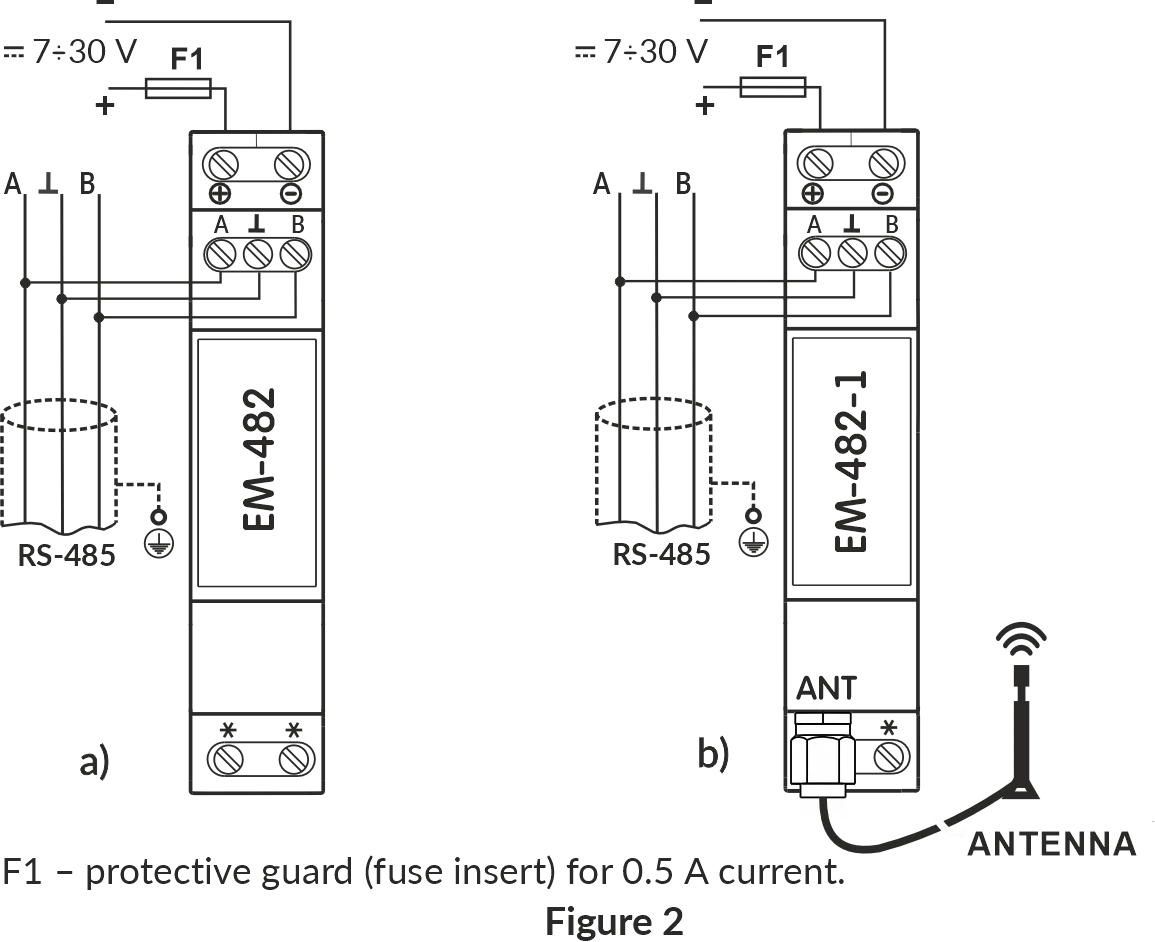
Wiring requirementsSection titled “Wiring requirements”If the temperature of EM-482 after transportation or storage differs from the ambient operating temperature, keep EM-482 under operating conditions for at least two hours before connecting it to the power supply. This prevents condensation on internal components. To ensure reliable electrical connections, use flexible (stranded) wires. Strip the insulation from the wire ends by 5±0.5 mm and crimp with suitable ferrules. It is recommended to use wire with a cross-section of at least 1 mm². When connecting to the RS-485 bus, use twisted-pair cable of category 1 or higher. A shielded cable is recommended; in that case, ground the shield according to “ANSI/TIA/EIA-485-A-1998”. Route and fasten wires so as to avoid mechanical damage, twisting, or abrasion of the insulation. For a reliable contact, tighten the terminal screws with the force indicated in Technical specifications. To improve safety and reliability, it is recommended to install the fuse F1 (or its equivalent) in the EM-482 supply circuit, rated for a current of no more than 0.5 A. Electrical connectionSection titled “Electrical connection”
Figure 2 – Connection diagram
Follow these steps to connect the EM-482:
Power-up and normal operationSection titled “Power-up and normal operation”After power is turned on, all indicators light up, and EM-482 performs initialization.
After approximately 2 seconds, the indicators (except for the If the After this, if enabled in settings, EM-482 establishes a connection with the cloud server. By default, cloud connection is enabled. If configured, EM-482 establishes TCP connections and waits for incoming TCP connections. Communication modesSection titled “Communication modes”The EM-482 is a protocol converter that bridges RS-485 Modbus RTU/ASCII networks with Modbus TCP networks. It operates in multiple communication modes simultaneously, providing flexible connectivity through Wi-Fi networks, and RS-485 interface. Each mode serves a distinct purpose and can be used independently or in combination to meet your application requirements. Connection to cloud server (reverse connection)Section titled “Connection to cloud server (reverse connection)”EM-482 can establish and maintain a persistent outbound connection to a cloud server (using Modbus TCP protocol).
Use case: Centralized monitoring and control of distributed equipment through cloud platforms like Overvis Cloud, enabling remote access from anywhere without configuring firewall port forwarding or static IP addresses. RS-485 Modbus RTU/ASCII master modeSection titled “RS-485 Modbus RTU/ASCII master mode”In master mode, EM-482 forwards Modbus requests from TCP clients to devices on the RS-485 bus and returns their responses.
Request processing is described in detail in Modbus interface. Use case: Data collection and event tracking for serial port equipment. Integrated Modbus TCP server (slave mode)Section titled “Integrated Modbus TCP server (slave mode)”EM-482 acts as a Modbus TCP server, accepting incoming connections and processing Modbus requests.
Use case: Access to the RS-485 serial port equipment for the TCP devices, HMI panels, SCADA and other Modbus TCP software. Connection to remote Modbus TCP server (master mode)Section titled “Connection to remote Modbus TCP server (master mode)”EM-482 can establish outgoing connection to remote Modbus TCP server, enabling it to forward requests to remote devices.
Use case: Data collection and event tracking for Modbus TCP equipment. Reverse control translator mode (RS-485 slave, TCP master)Section titled “Reverse control translator mode (RS-485 slave, TCP master)”EM-482 can operate as an RS-485 slave while acting as a Modbus TCP master, enabling reverse control scenarios.
Use case: Access to the Modbus TCP equipment for the RS-485 serial port master device. Network extension (long-range RS-485 bridging)Section titled “Network extension (long-range RS-485 bridging)”Pair two EM-482 units to extend RS-485 networks beyond physical distance limitations by converting to/from TCP.
Use case: Connecting RS-485 networks in separate buildings without running long cable runs, extending RS-485 beyond the 1200m distance limit, or accessing remote sites via Internet. ConfigurationSection titled “Configuration”EM-482 configuration can be performed in two ways:
Use the service To reset the device to factory settings:
To switch Wi-Fi setup mode on or off:
To reset the device (while preserving the settings):
MaintenanceSection titled “Maintenance”
Service life and warrantySection titled “Service life and warranty”
When returning EM-482 for warranty or post-warranty service, please provide a detailed reason for the return in the claims data field. Transportation and storageSection titled “Transportation and storage”You may transport and store EM-482 in the original package at temperatures from minus 45 to +60 °C and relative humidity of no more than 80%. When transporting EM-482, protect it against mechanical damage. Manufacturer ContactSection titled “Manufacturer Contact”“Novatek-Electro” Ltd.
See alsoSection titled “See also” |
| Novatek-Electro EM-482 Documentation |
|---|
Connections and Network SetupIP AddressingSection titled “IP Addressing”The EM-482 uses standard TCP/IPv4 addressing for Wi-Fi communication. DHCP is enabled by default, allowing the device to automatically obtain network settings from your router. Without DHCP the factory default IP address is IP Addressing FundamentalsWhen devices communicate over a network using the TCP/IPv4 protocol, each device uses IP addressing settings to identify the sender and receiver of data. EM-482 stores the following in its memory:
Requirements for Proper Communication: Devices within a subnet communicate properly when these conditions are met:
Wi-Fi Connection MethodsSection titled “Wi-Fi Connection Methods”EM-482 supports three connection methods via Wi-Fi. Method 1: Wi-Fi setup access point mode This mode is only used to configure EM-482 essential communication parameters. It is not intended for Modbus communication.
Method 2: Network with DHCP Server If your network access point has DHCP server that assigns IP addresses to new devices:
Method 3: Network Without DHCP If DHCP is unavailable, or a static address should be used outside the DHCP range:
Internet Connection via Wi-FiSection titled “Internet Connection via Wi-Fi”Basic Internet SetupSection titled “Basic Internet Setup”To connect EM-482 to the Internet via Wi-Fi:
This setup enables outgoing connections (e.g., active-mode connection to cloud servers, connections to other servers using their static IP addresses). graph LR
A[EM-482] -->|Wi-Fi| B[Router]
B -->|WAN| C[Internet/ISP]
B -->|LAN| D[Local Network]
C --> E[Cloud Server / Remote Modbus TCP Devices]
D --> F[Modbus TCP Devices]
Fig. 3 – EM-482 Internet connection topology via Wi-Fi with DHCP Incoming Connections SetupSection titled “Incoming Connections Setup”To access the device from the Internet via incoming connections (direct TCP connection or web interface):
Connection SecuritySection titled “Connection Security”EM-482 provides several security features to protect against unauthorized access: Built-in Security FeaturesSection titled “Built-in Security Features”EM-482 has basic protection against unauthorized access via network. Access for writing and/or reading via Modbus can be deactivated in settings. Device settings can be changed remotely by entering a password (minimum 5 characters). Access passwords can be set for restriction of writing and/or reading via Modbus. When entering the password, all settings are only available to the specific client. In case of no requests from the client over a long period, the access returns to locked mode. Server ConnectionSection titled “Server Connection”EM-482 supports constant communication with data collection and management servers, for example, Overvis Cloud. EM-482 factory settings are preconfigured for Overvis connection, once the Internet access is provided, EM-482 would connect to the cloud server. The Overvis system uses MAC address-based authentication — the device’s unique MAC address is sent to the server at each connection session. Connection Methods OverviewSection titled “Connection Methods Overview”There are two ways to connect EM-482 to Overvis Cloud:
Method 1: Using PIN/QR Code from Device LabelSection titled “Method 1: Using PIN/QR Code from Device Label”This is the recommended method for first-time setup, using the registration information from your EM-482 label. sequenceDiagram
participant EM-482
participant Overvis
participant User
EM-482->>Overvis: Connect & send handshake (MAC address)
Overvis->>EM-482: Confirm handshake
Note over EM-482,Overvis: Connection established, waiting for binding
User->>Overvis: Scan QR code / Enter PIN URL
User->>Overvis: Login to account
User->>Overvis: Submit PIN in "Create Network" page
Overvis->>Overvis: Link PIN to MAC address
Overvis->>Overvis: Find matching connection by MAC
Overvis->>User: Create network under user's account
loop Data Communication
User->>Overvis: Request device data
Overvis->>EM-482: Read registers (via established connection)
EM-482->>Overvis: Return data
Overvis->>User: Display data
end
Fig. 6 – Connection sequence for PIN/QR code method (reverse connection) Connection Flow: EM-482 initiates outbound connection to Overvis and maintains it. User registers by linking the PIN to this existing connection. No port forwarding required. Prerequisites:
Connection Steps:
Method 2: Direct Connection from OvervisSection titled “Method 2: Direct Connection from Overvis”This method allows Overvis to connect directly to your EM-482 using its public IP address. It requires more advanced network configuration. sequenceDiagram
participant User
participant EM-482
participant Router
participant Overvis
User->>Router: Configure port forwarding<br/>(Public IP:Port → EM-482:502)
User->>EM-482: Set static/reserved IP
User->>Overvis: Add network with direct connection method
User->>Overvis: Enter public IP & port
Overvis->>Router: Connect to Public IP:Port
Router->>EM-482: Forward to EM-482:502
EM-482->>Router: Modbus TCP response
Router->>Overvis: Forward response
Overvis->>User: Show device online
loop Data Communication
User->>Overvis: Request device data
Overvis->>Router: Read registers request
Router->>EM-482: Forward request to EM-482:502
EM-482->>Router: Return data
Router->>Overvis: Forward response
Overvis->>User: Display data
end
Fig. 11 – Connection sequence for direct connection method (incoming connection) Connection Flow: Overvis initiates inbound connection to EM-482 through router port forwarding. Requires static public IP. Prerequisites:
Connection Steps:
Connecting to Other ServersSection titled “Connecting to Other Servers”The only method of connection EM-482 to other cloud servers and SCADA systems is the direct connection method via Modbus TCP. Configure EM-482 in the monitoring system as a remote Modbus TCP device. This requires setting up port forwarding on your router to redirect external connections to EM-482’s local IP address and Modbus TCP port (default: 502). Your server will initiate connections to EM-482 through your router, similar to Method 2 described above. You’ll need a static public IP address from your ISP. Since EM-482 uses the standard Modbus TCP protocol for direct connections, no special server software is required—any Modbus TCP client can communicate with the device. See the Modbus Interface documentation for complete register mappings and communication protocols. TroubleshootingSection titled “Troubleshooting”Problem: EM-482 EM-482 is not connected to your Wi-Fi access point. Either Wi-Fi access point is misconfigured, or the access point is unavailable. If the issue persists, verify the Wi-Fi access point is properly configured in EM-482 settings. Problem: EM-482 EM-482 is not connected to the Internet. Verify the server connection is enabled in the web interface. Check that the server address and port are correct in settings. Your network firewall may be blocking outgoing connections. If the issue persists, check the router internet access. Problem: EM-482 The EM-482 is in setup access point mode. Either complete the configuration, or exit the mode by pressing the Problem: Cannot access EM-482 web interface Check the EM-482 is in setup access point mode (the LEDs are blinking alternately). Check your device is connected to EM-482 access point. Use Problem: “Device already registered” error The device is bound to another Overvis account. Use the Restart Activation button in the Cloud settings page to unbind it, or contact the server administration (or the previous owner) to remove the device from their account. Problem: Intermittent connection drops Check that the power supply voltage is within the required range (7-30V DC) and can provide sufficient current (up to 110mA). Look for electrical noise or interference sources near the device. Update EM-482 firmware to the latest version. Problem: RS-485 devices not responding Verify the RS-485 wiring is correct (A and B terminals). Check that the RS-485 bus termination is properly configured. Verify Modbus RTU/ASCII settings match the connected devices. See the Modbus Interface documentation for detailed communication settings. Further ReadingSection titled “Further Reading”
Need Help?Section titled “Need Help?”If you’re experiencing issues not covered in this guide, we’re here to help:
For warranty service or hardware issues, please contact your authorized distributor or the manufacturer directly. |
| Novatek-Electro EM-482 Documentation | |||||||||||||||||||||||||||||||||||||||||||||||||||||||||||||||||||||||||||||||||||||||||||||||||||||||||||||||||||||||||||||||||||||||||||||||||||||||||||||||||||||||||||||||||||||||||||||||||||||||||||||||||||||||||||||||||||||||||||||||||||||||||||||||||||||||||||||||||||||||||||||||||||||||||||||||||||||||||||||||||||||||||||||||||||||||||||||||||||||||||||||||||||||||||||||||||||||||||||||||||||||||||||||||||||||||||||||||||||||||||||||||||||||||||||||||||||||||||||||||||||||||||||||||||||||||||||||||||||||||||||||||||||||||||||||||||||||||||||||||||||||||||||||||||||||||||||||||||||||||||||||||||||||||||||||||||||||||||||||||||||||||||||||||||||||||||||||||||||||||||||||||||||||||||||||||||||||||||||||||||||||||||||||||||||||||||||||||||||||||||||||||||||||||||||||||||||||||||||||||||||||||||||||||||||||||||||||||||||||||||||||||||||||||||||||||||||||||||||||||
|---|---|---|---|---|---|---|---|---|---|---|---|---|---|---|---|---|---|---|---|---|---|---|---|---|---|---|---|---|---|---|---|---|---|---|---|---|---|---|---|---|---|---|---|---|---|---|---|---|---|---|---|---|---|---|---|---|---|---|---|---|---|---|---|---|---|---|---|---|---|---|---|---|---|---|---|---|---|---|---|---|---|---|---|---|---|---|---|---|---|---|---|---|---|---|---|---|---|---|---|---|---|---|---|---|---|---|---|---|---|---|---|---|---|---|---|---|---|---|---|---|---|---|---|---|---|---|---|---|---|---|---|---|---|---|---|---|---|---|---|---|---|---|---|---|---|---|---|---|---|---|---|---|---|---|---|---|---|---|---|---|---|---|---|---|---|---|---|---|---|---|---|---|---|---|---|---|---|---|---|---|---|---|---|---|---|---|---|---|---|---|---|---|---|---|---|---|---|---|---|---|---|---|---|---|---|---|---|---|---|---|---|---|---|---|---|---|---|---|---|---|---|---|---|---|---|---|---|---|---|---|---|---|---|---|---|---|---|---|---|---|---|---|---|---|---|---|---|---|---|---|---|---|---|---|---|---|---|---|---|---|---|---|---|---|---|---|---|---|---|---|---|---|---|---|---|---|---|---|---|---|---|---|---|---|---|---|---|---|---|---|---|---|---|---|---|---|---|---|---|---|---|---|---|---|---|---|---|---|---|---|---|---|---|---|---|---|---|---|---|---|---|---|---|---|---|---|---|---|---|---|---|---|---|---|---|---|---|---|---|---|---|---|---|---|---|---|---|---|---|---|---|---|---|---|---|---|---|---|---|---|---|---|---|---|---|---|---|---|---|---|---|---|---|---|---|---|---|---|---|---|---|---|---|---|---|---|---|---|---|---|---|---|---|---|---|---|---|---|---|---|---|---|---|---|---|---|---|---|---|---|---|---|---|---|---|---|---|---|---|---|---|---|---|---|---|---|---|---|---|---|---|---|---|---|---|---|---|---|---|---|---|---|---|---|---|---|---|---|---|---|---|---|---|---|---|---|---|---|---|---|---|---|---|---|---|---|---|---|---|---|---|---|---|---|---|---|---|---|---|---|---|---|---|---|---|---|---|---|---|---|---|---|---|---|---|---|---|---|---|---|---|---|---|---|---|---|---|---|---|---|---|---|---|---|---|---|---|---|---|---|---|---|---|---|---|---|---|---|---|---|---|---|---|---|---|---|---|---|---|---|---|---|---|---|---|---|---|---|---|---|---|---|---|---|---|---|---|---|---|---|---|---|---|---|---|---|---|---|---|---|---|---|---|---|---|---|---|---|---|---|---|---|---|---|---|---|---|---|---|---|---|---|---|---|---|---|---|---|---|---|---|---|---|---|---|---|---|---|---|---|---|---|---|---|---|---|---|---|---|---|---|---|---|---|---|---|---|---|---|---|---|---|---|---|---|---|---|---|---|---|---|---|---|---|---|---|---|---|---|---|---|---|---|---|---|---|---|---|---|---|---|---|---|---|---|---|---|---|---|---|---|---|---|---|---|---|---|---|---|---|---|---|---|---|---|---|---|---|---|---|---|---|---|---|---|---|---|---|---|---|---|---|---|---|---|---|---|---|---|---|---|---|---|---|---|---|---|---|---|---|---|---|---|---|---|---|---|---|---|---|---|---|---|---|---|---|---|---|---|---|---|---|---|---|---|---|---|---|---|---|---|---|---|---|---|---|---|---|---|---|---|---|---|---|---|---|---|---|---|---|---|---|---|---|---|---|---|---|---|---|---|---|---|---|---|---|---|---|---|---|---|---|---|---|---|---|---|---|---|---|---|---|---|---|---|---|---|---|---|---|---|---|---|---|---|---|---|---|---|---|---|---|---|---|---|---|---|---|---|---|---|---|---|---|---|---|---|---|---|---|---|---|---|---|---|---|---|---|---|---|---|---|---|---|---|---|---|---|---|---|---|---|---|---|---|---|---|---|---|---|---|---|---|---|---|---|---|---|---|
Modbus Interface ReferenceThe EM-482 operates as a Modbus gateway, listening for Modbus TCP connections on port 502 (configurable). It supports connections from standard Modbus TCP client applications. Windows client software for basic testing is available for download here. Upon receiving a connection request, the EM-482 checks its list of active clients. If the maximum list size (as per technical specifications) has not been reached, the new client is accepted. Once connected, the EM-482 processes Modbus requests from the client. In RS-485 Slave Mode, it also accepts requests from a Modbus Master on the RS-485 bus. Request ProcessingSection titled “Request Processing”The device analyzes each request based on the requested function and the client’s access rights (determined by passwords entered).
If a valid response is received, the EM-482 forwards it back to the client. TroubleshootingSection titled “Troubleshooting”
Table 1 - Standard Modbus Exception Codes
Configuration via ModbusSection titled “Configuration via Modbus”The EM-482 can be configured using any Modbus TCP client.
Managing SettingsSection titled “Managing Settings”In Setup Mode, you can modify the Changeable Settings registers.
EM-482 ParametersSection titled “EM-482 Parameters”Table 2 - Parameter Data Formats
Table 3 - Parameter Groups
Device Description ParametersSection titled “Device Description Parameters”Table 4 - Device Description Parameters
Current Mode ParametersSection titled “Current Mode Parameters”Table 5 - Current Mode Parameters
Table 5.1 - Control Commands (Register 120)
Current Status ParametersSection titled “Current Status Parameters”Table 6 - Current Status Parameters
Table 6.1 - Tabs of Access Bits (Register 122)
Table 6.2 - Firmware Download Status Bits (Register 2004)
Settings ParametersSection titled “Settings Parameters”Table 7 - Settings Parameters
Table 7.1 - RS-485 Byte Formats (Register 461)
Q: What is the default Modbus TCP port and device address? A: EM-482 listens on TCP port 502 (configurable in register 450) and uses Modbus address 111 by default (configurable in register 457). The current IP address can be usually checked at the network router which provides the Wi-Fi access point for EM-482. Q: How do I enter Setup Mode to change configuration? A: Write the password (found on the device label) to registers 100-119. If correct, register 121 will read Q: How do I save my configuration changes? A: Write command Q: I have saved the new settings, how do I restart EM-482 remotely? A: Write command Q: How do I configure RS-485 communication parameters? A: Key registers are:
Q: What is the difference between Master and Slave RS-485 modes? A: In Modbus Master mode (default), EM-482 sends queries to RS-485 devices (these queries come from Modbus TCP clients via Wi-Fi). In Modbus Slave mode, EM-482 receives queries from an external Modbus Master on RS-485 (these queries usually are intended for remote Modbus TCP server accessible via Wi-Fi). Use Slave mode when EM-482 should act as a slave device on an existing RS-485 network. **Q: I have configured RS-485 and set EM-482 modbus device ID parameter to match my RS-485 device address. But I still get errors like A: This can happen because EM-482 (configured this way) reads its own Modbus registers instead of redirecting the requests to your RS-485 device. Do not set EM-482 own Modbus ID in the Q: Can I connect the RS-485 device if its protocol differs from Modbus? A: No, the EM-482 supports only Modbus protocol transfers. Q: Can I connect EM-482 to multiple remote Modbus TCP servers? A: EM-482 supports connection to a single remote TCP server. If this server is itself a EM-482 converter, they can be configured as a chain, with each one connecting to the next EM-482 IP address. However, the delays are increased with the chain length. To connect several of the other Modbus TCP devices, a converter supporting multiple remote servers can be used (one from the EM-48x or MC-25x series, e.g. EM-483). Configure each remote connection in devices’s registers 640-649. The main parameters are the connection mode and the server IP address. Also, set Modbus ID range for each remote server to avoid extra traffic and delays. Q: How do I reset the device to factory defaults? A: Enter Setup Mode by writing the password, then write command Q: How do I check the current firmware version? A: Read register 1 for the firmware version number. Need Help?Section titled “Need Help?”For technical support and assistance:
|
| Novatek-Electro EM-482 Documentation | ||||||||
|---|---|---|---|---|---|---|---|---|
Firmware DownloadsLatest VersionSection titled “Latest Version”
See Firmware update instructions for the ways to update the firmware. ChangelogSection titled “Changelog”Version 10Section titled “Version 10”2024-03-20 Download
Version 7Section titled “Version 7”2020-01-30 Download
Version 6Section titled “Version 6”2020-01-23
Version 5Section titled “Version 5”2019-11-22 Download
Version 3Section titled “Version 3”2019-10-01
|
| Novatek-Electro EM-482 Documentation |
|---|
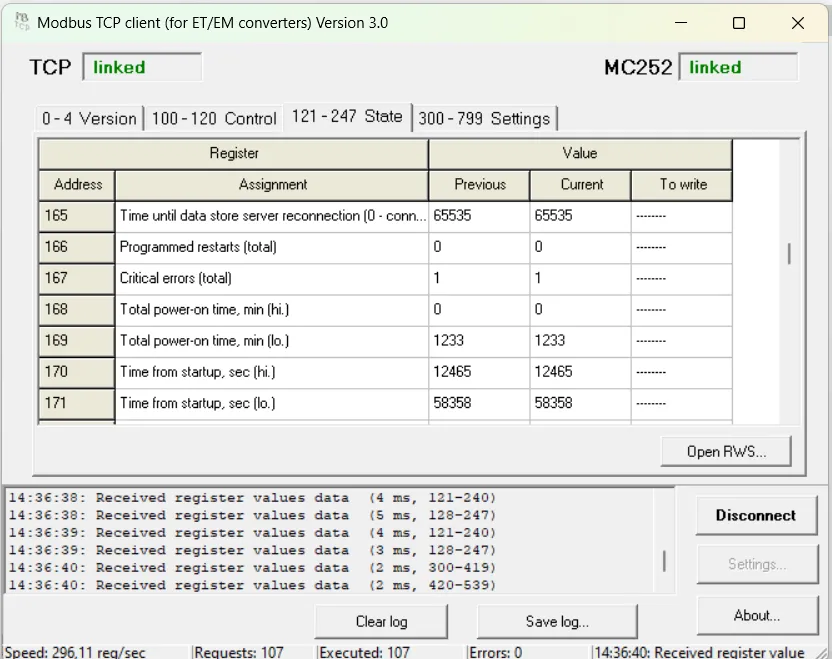
Additional SoftwareThis page lists available software utilities for the EM-482 Protocol Converter. These tools are designed to help with device configuration, testing, and Modbus TCP communication. Windows Modbus TCP Client Software (Novatek-Electro)Section titled “Windows Modbus TCP Client Software (Novatek-Electro)”
The Modbus TCP Client is a Windows application designed for basic communication and testing with network devices that support the Modbus TCP protocol. It enables reading and writing to device holding registers. This application can also connect to other devices on the network, by using bridge and gateway devices (such as EM-482, EM-483, ET-485 converters, and MC251, MC252, EM-480, EM-481, EM-486 controllers). Key features include:
System RequirementsSection titled “System Requirements”
Download: Setup_MBTCP_Client(ver3.0).exe |
| Novatek-Electro EM-482 Documentation |
|---|
Firmware UpdateEM-482 stores two update files in its memory:
Any of these files can be retrieved from the EM-482 memory (to upload to another Product). Firmware can be updated from these files via the WEB-interface, or remotely by Modbus command. Before you startSection titled “Before you start”Checking current versionSection titled “Checking current version”Before updating, check your current firmware version to see if an update is necessary. You can find the version number:
Updating from the file can be done in the firmware update mode. Getting the update file into EM-482Section titled “Getting the update file into EM-482”The update files can be written to the EM-482 memory in 2 ways:
Updating EM-482 from the fileSection titled “Updating EM-482 from the file”EM-482 firmware can be updated from the file in its memory in 2 ways:
Troubleshooting & FAQSection titled “Troubleshooting & FAQ”Q: Will I lose my configuration or data during an update? A: No, the firmware update to a newer version process is designed to preserve your device configuration, Modbus settings, and historical data. However, downgrading the firmware may revert the settings to factory defaults. In either case, backing up critical data is always recommended. Q: The “Upload” button is not appearing in the Web Interface. A: This can happen if some other file is already uploaded. Click the “Delete” button to free the memory. Q: The firmware does not update automatically. A: EM-482 does not support automatic updates. However, the firmware can be downloaded and updated from the server using two Modbus commands. Q: The firmware update does not download at Modbus command. A: This can happen if:
Q: The device does not see / does not recognize the uploaded file. A: This can happen if the file upload was interrupted. Try again, try different browser or use the firmware download from the server. Q: The update process seems to hang. A: The update process typically takes 1 minute. If it takes significantly longer:
Q: Can I downgrade the firmware? A: Yes, you can install an older firmware version by manually uploading the older firmware file and initiating the update. However, the device settings are not always retained and may be reverted to factory defaults after firmware downgrade. Need Help?Section titled “Need Help?”For technical support and assistance:
|